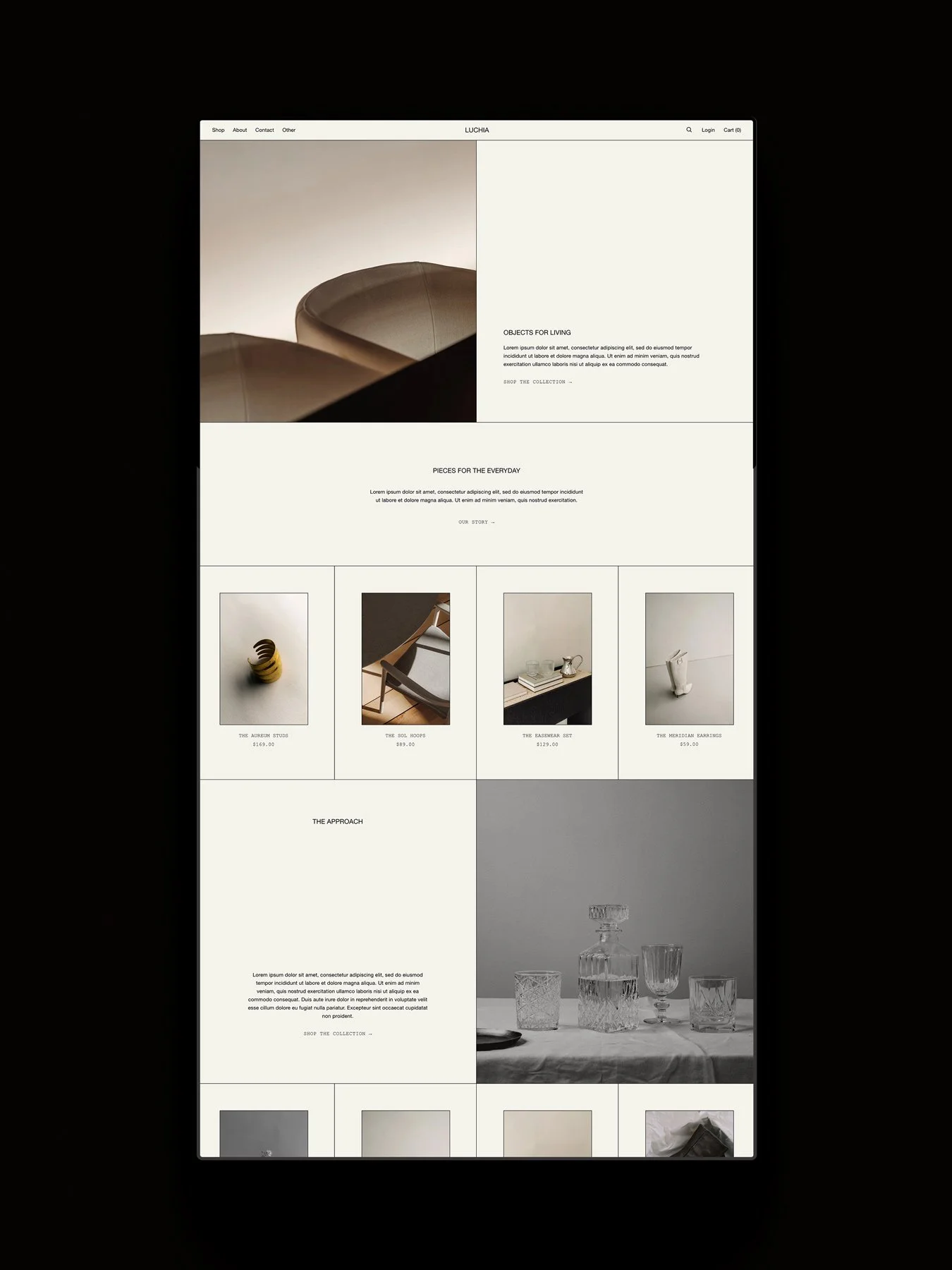
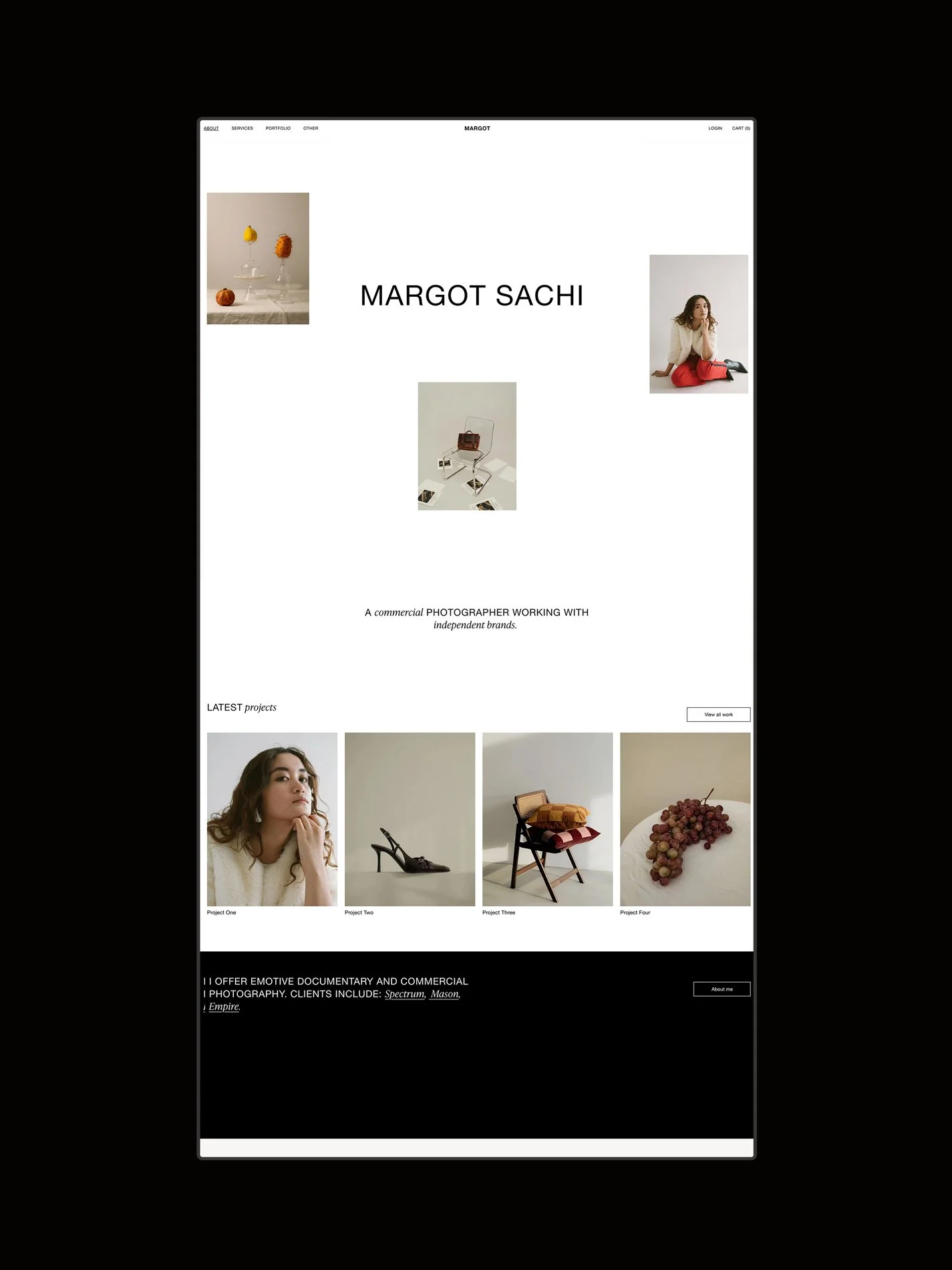
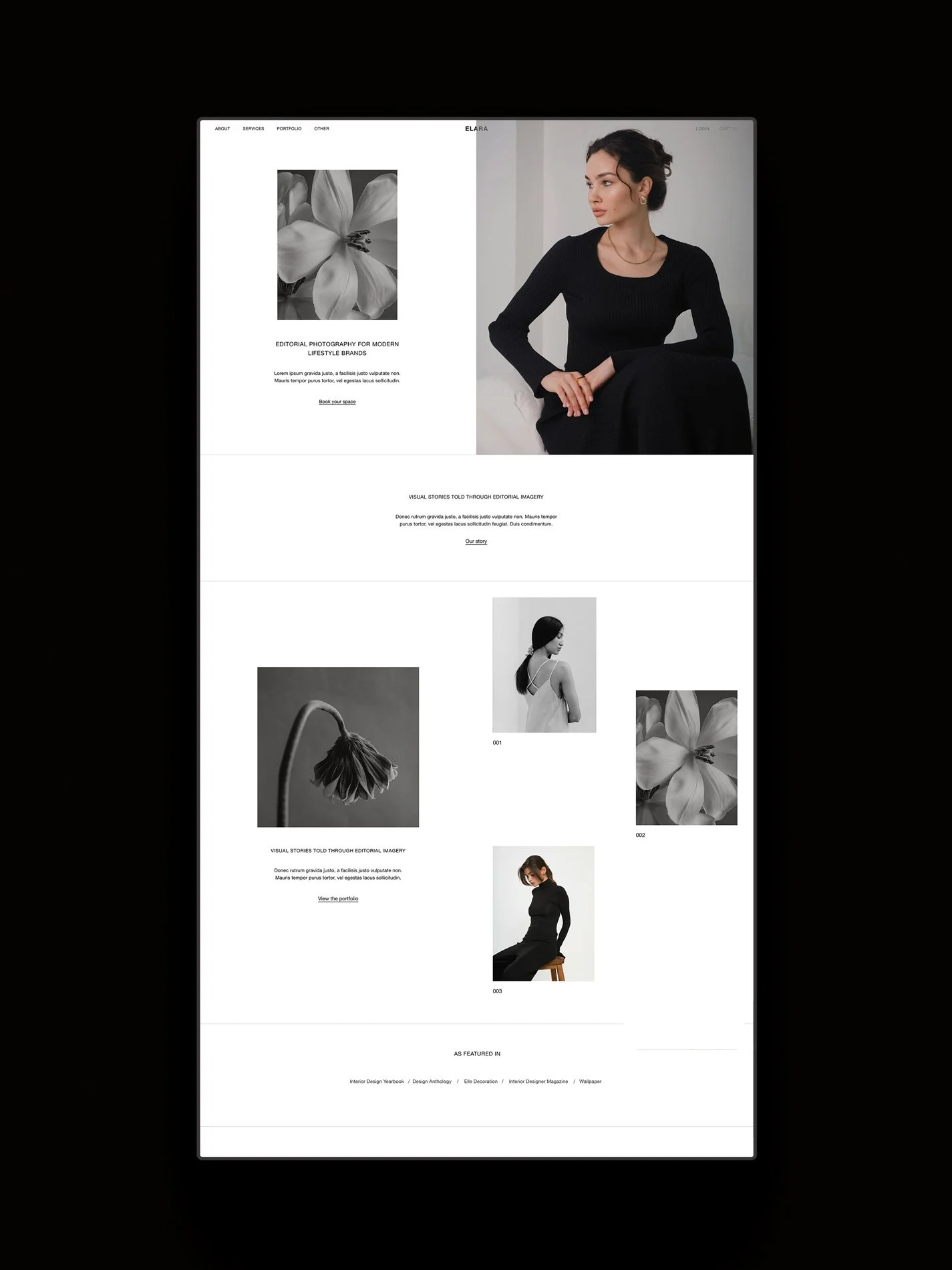
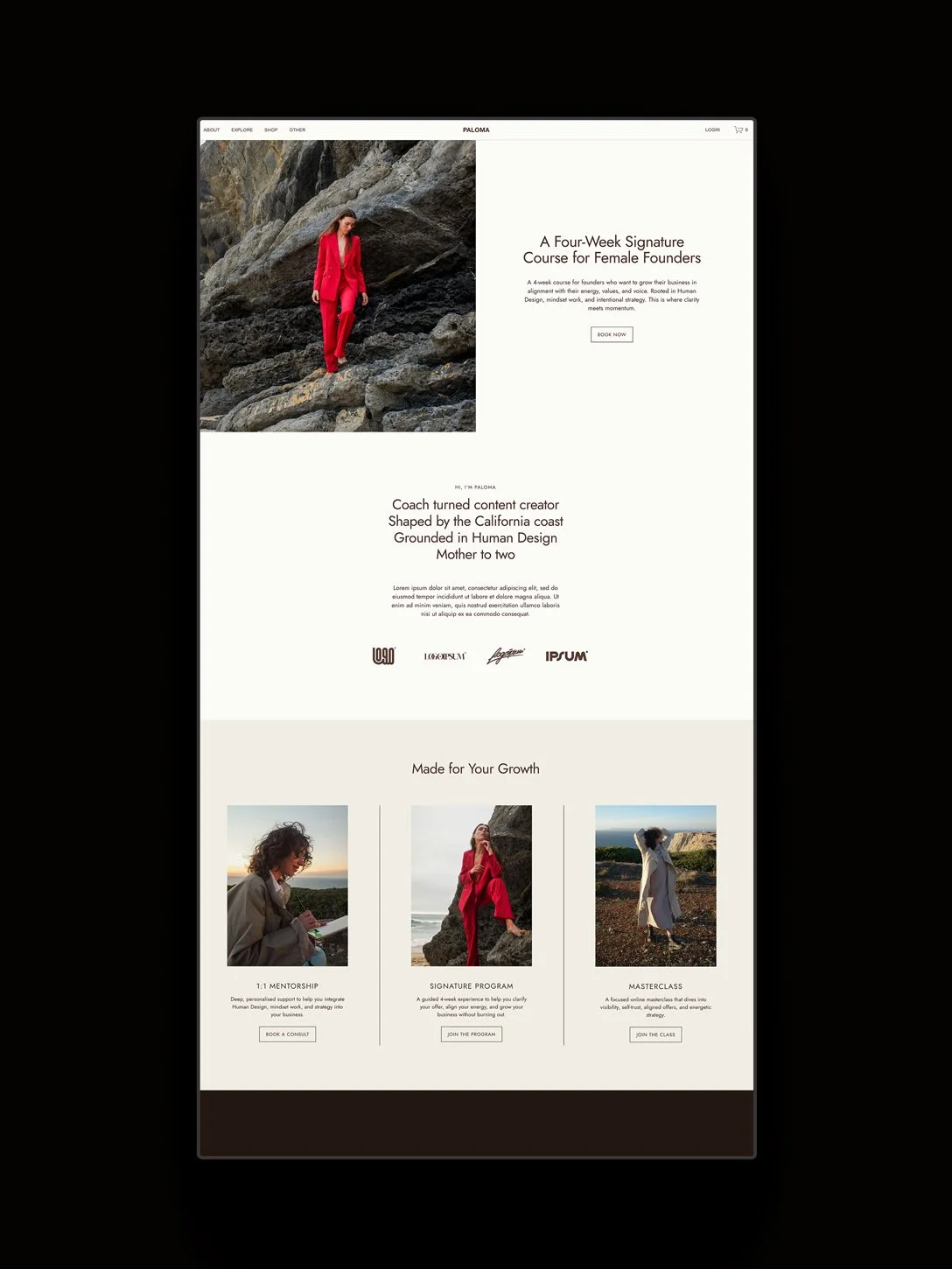
Instagram used to only give you one link in your bio. You can now add multiple links, but you might still want a branded experience or space to add extra content like email sign ups, images, and downloads.
Creating a Link in Bio page in your Squarespace* website keeps your Instagram traffic directed to your own website instead of a third party. It’s also customizable, so you can build a branded experience, styled with your fonts, colors, and images, and add elements like newsletter sign ups, contact forms, galleries, videos, and buttons.
In this guide, we’ll guide you through how to build a custom Squarespace Link in Bio page.
Affiliate disclosure: Some of the links in this article are affiliate links, marked with an asterisk (*). Studio Founded may receive a commission from qualifying purchases made through these links, at no additional cost to you. You can read our full affiliate disclosure here.
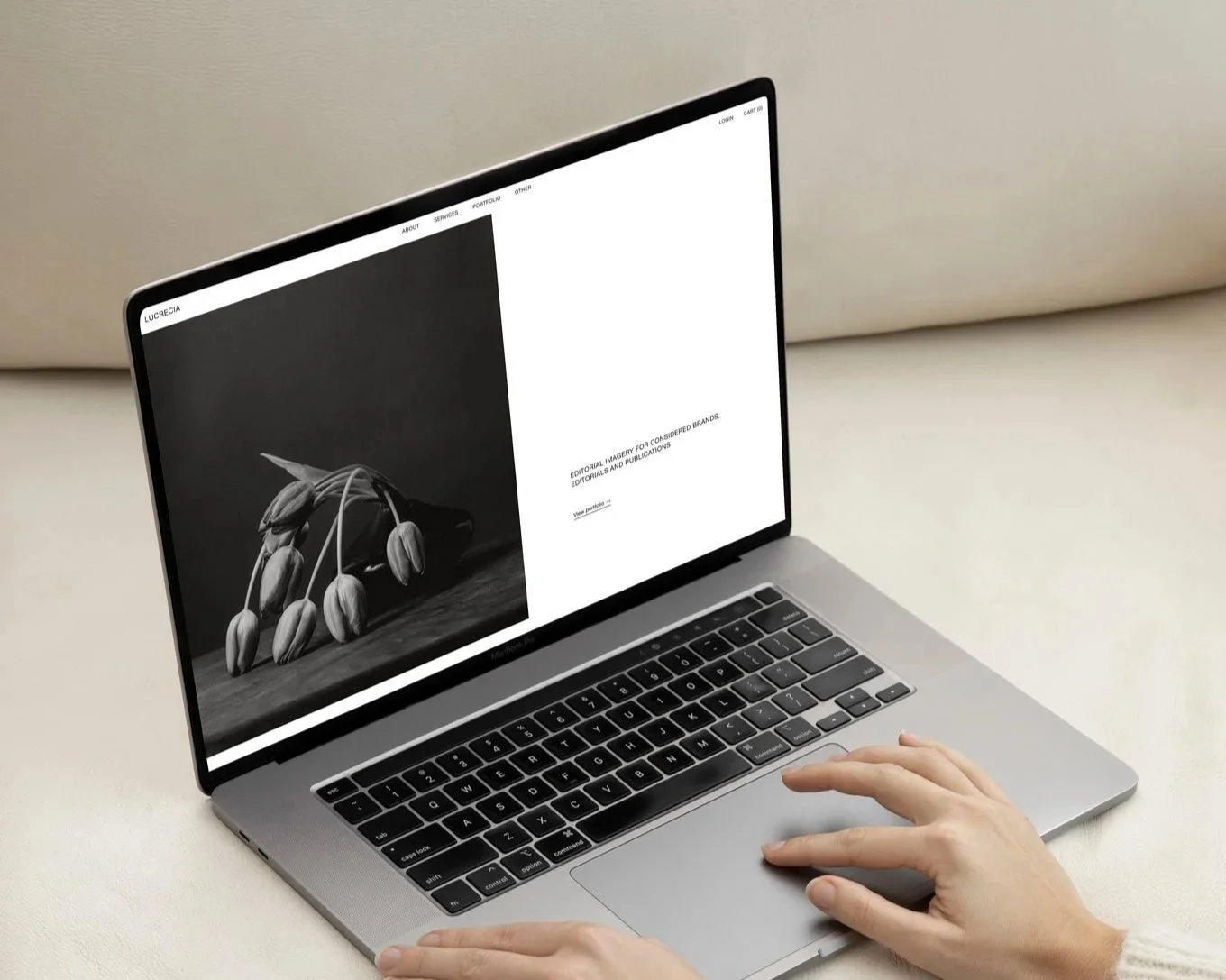
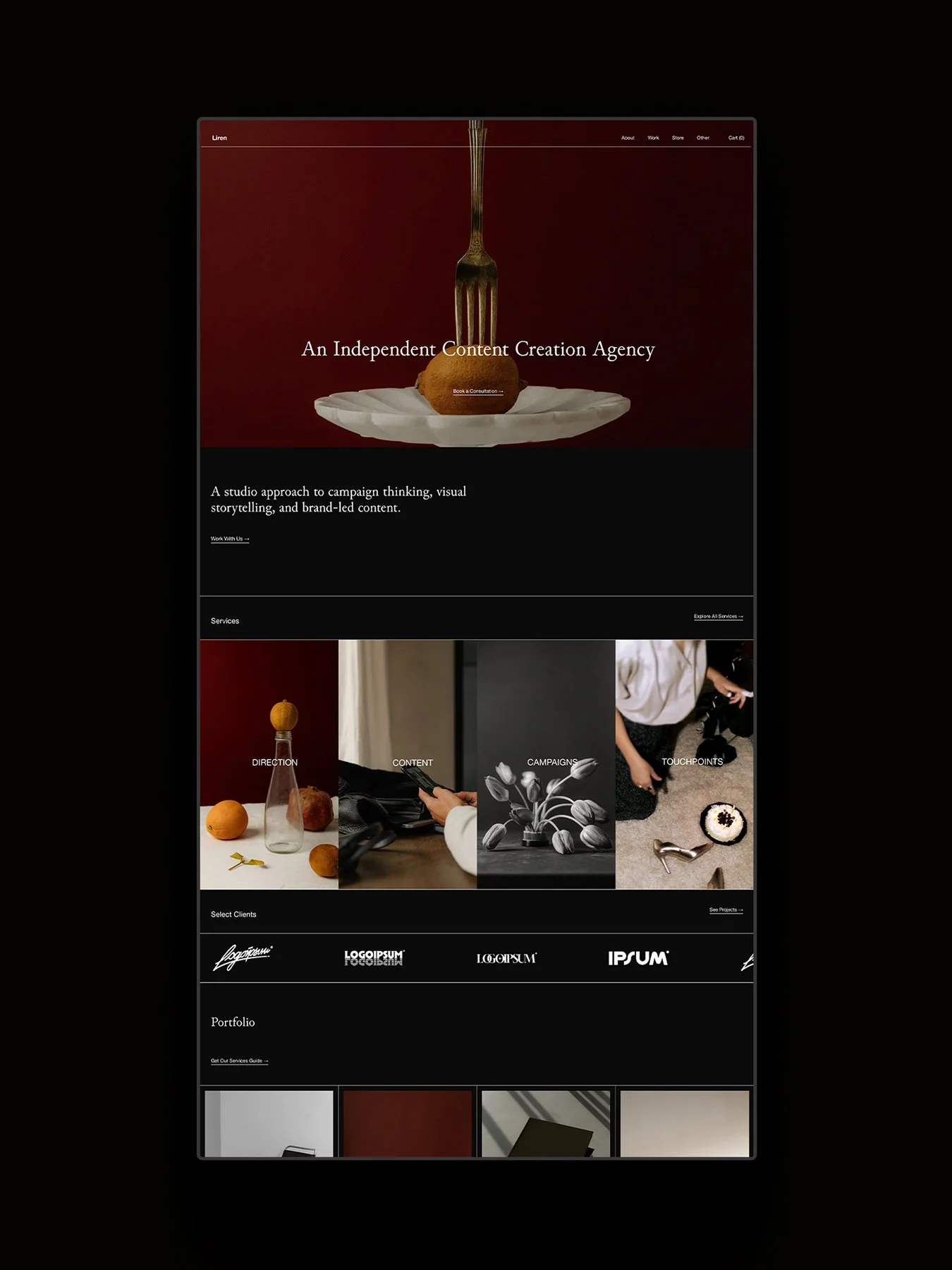
The Lucera Squarespace template for photographers.
What are Squarespace Bio Sites?
Let’s start by looking at Squarespace Bio Sites*, Squarespace’s Link in Bio tool with premade templates. Bio Sites have some beautiful design options, and they’re fast and easy to set up. If you just need a simple Link in Bio, this is a great option, but if you would like full control and customization, we recommend following the steps below to build a custom Link in Bio page inside your website.
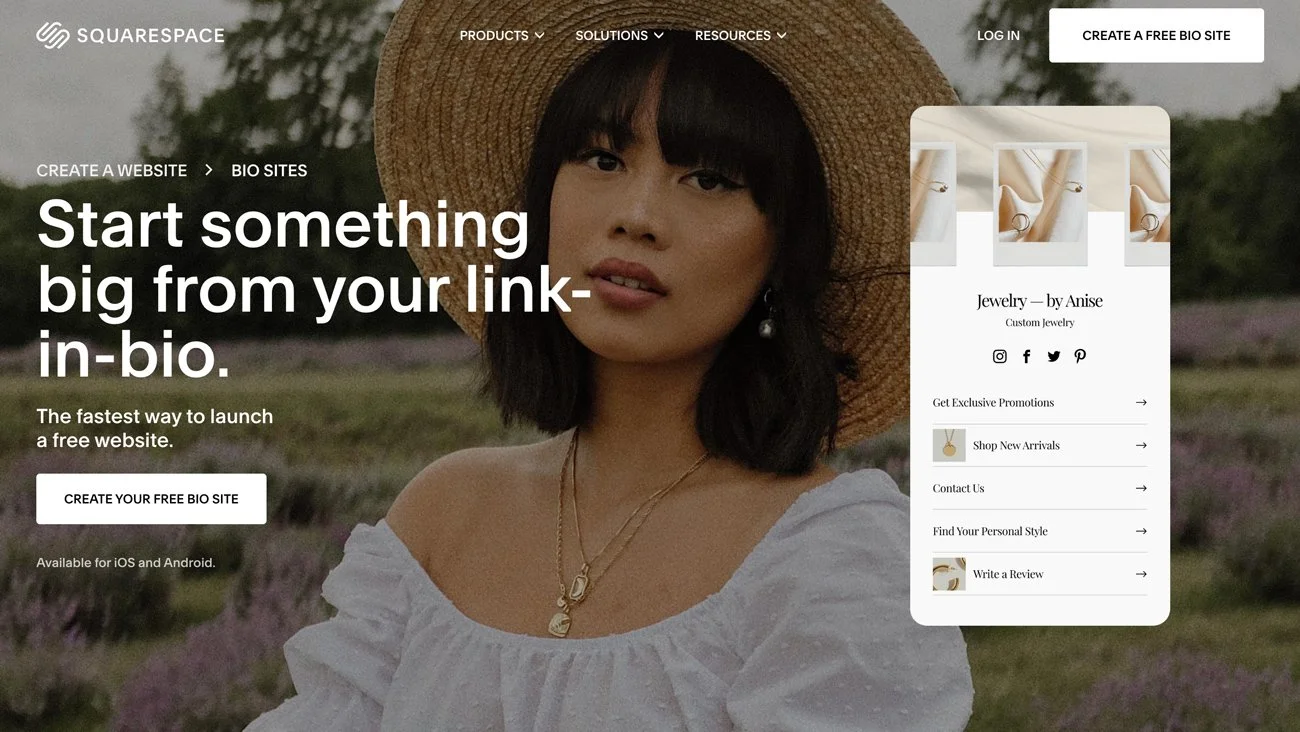
How to Build a Squarespace Link in Bio Page
Building a Link in Bio in Squarespace means creating a new page, adding your content, and hiding the navigation. Here’s how:
I. Create a New Page
In your Squarespace dashboard, go to Pages > Add a blank page to create your page.
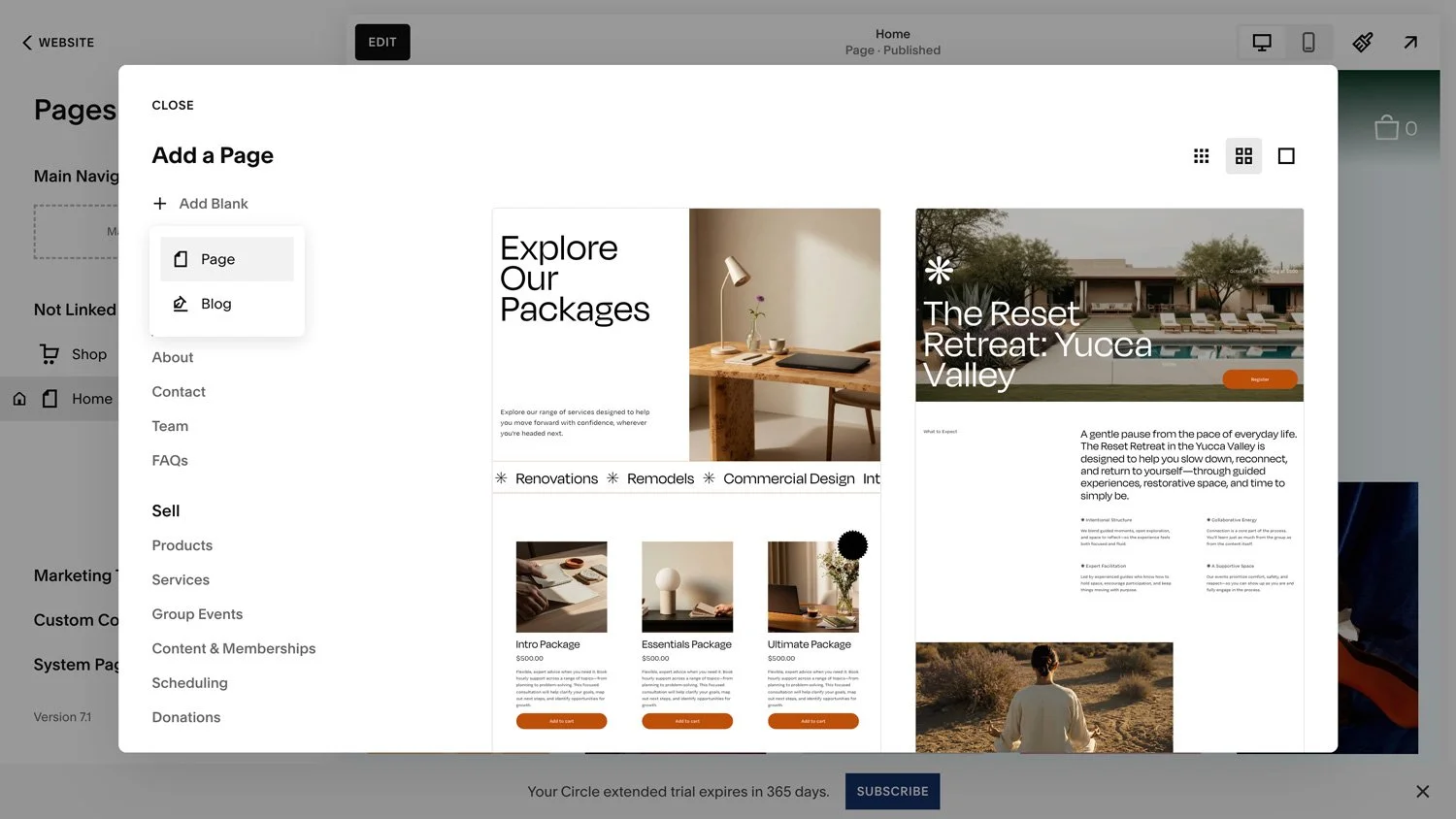
II. Name the Page
Return to the Pages panel and navigate to your Link in Bio page. Click the cog icon next to the page title to open Page Settings, and give the page a custom title and URL (something like /instagram-links).
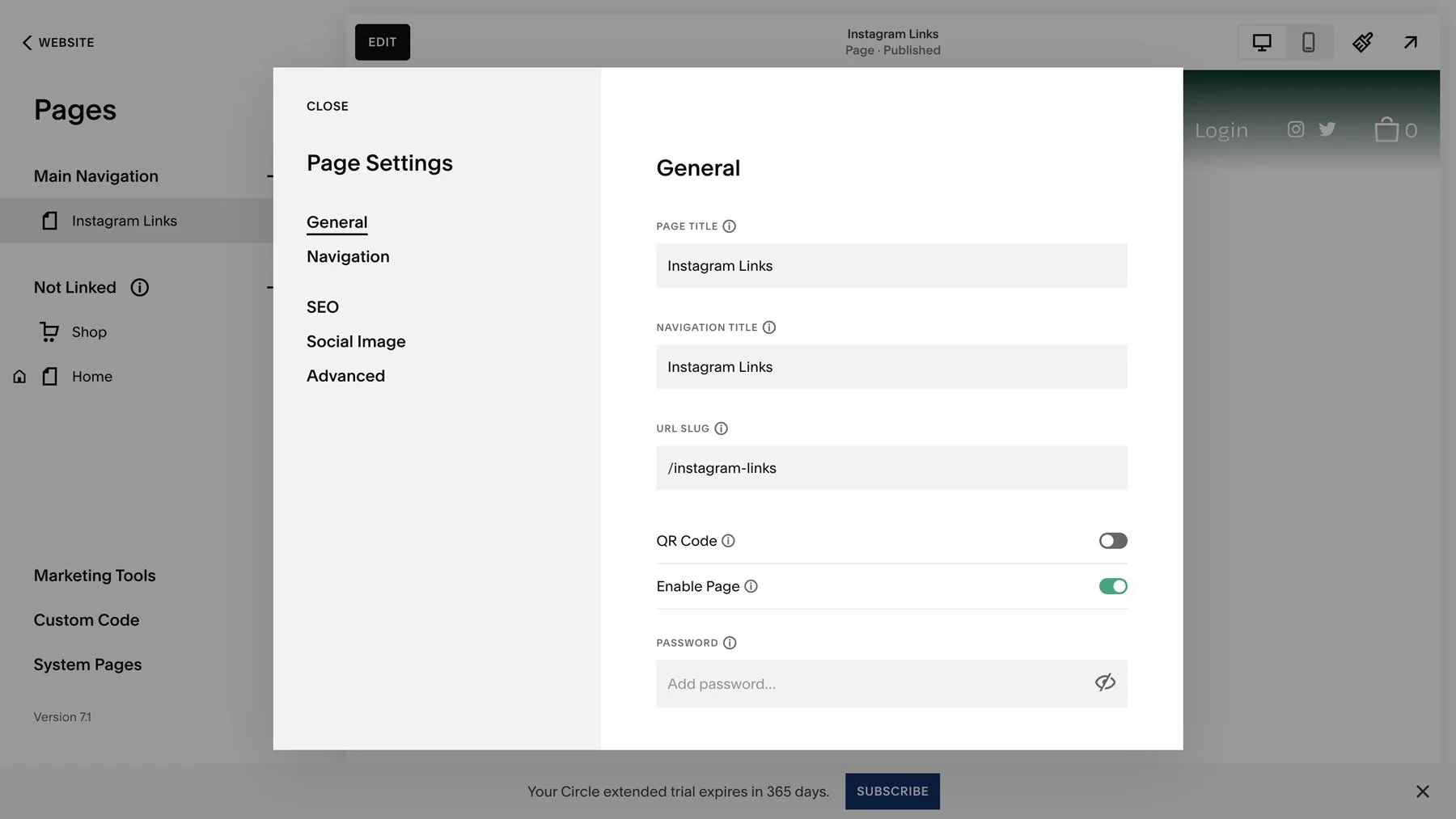
III. Add Your Link in Bio Links
Use Button Blocks or text links to create your Lin in Bio links.
IV. Turn Off Page Navigation
Go to Page Settings > Navigation > Toggle off the page header and footer. This way, visitors can’t see your sitewide header and footer, and can only see the links you’ve added to your Link in Bio.
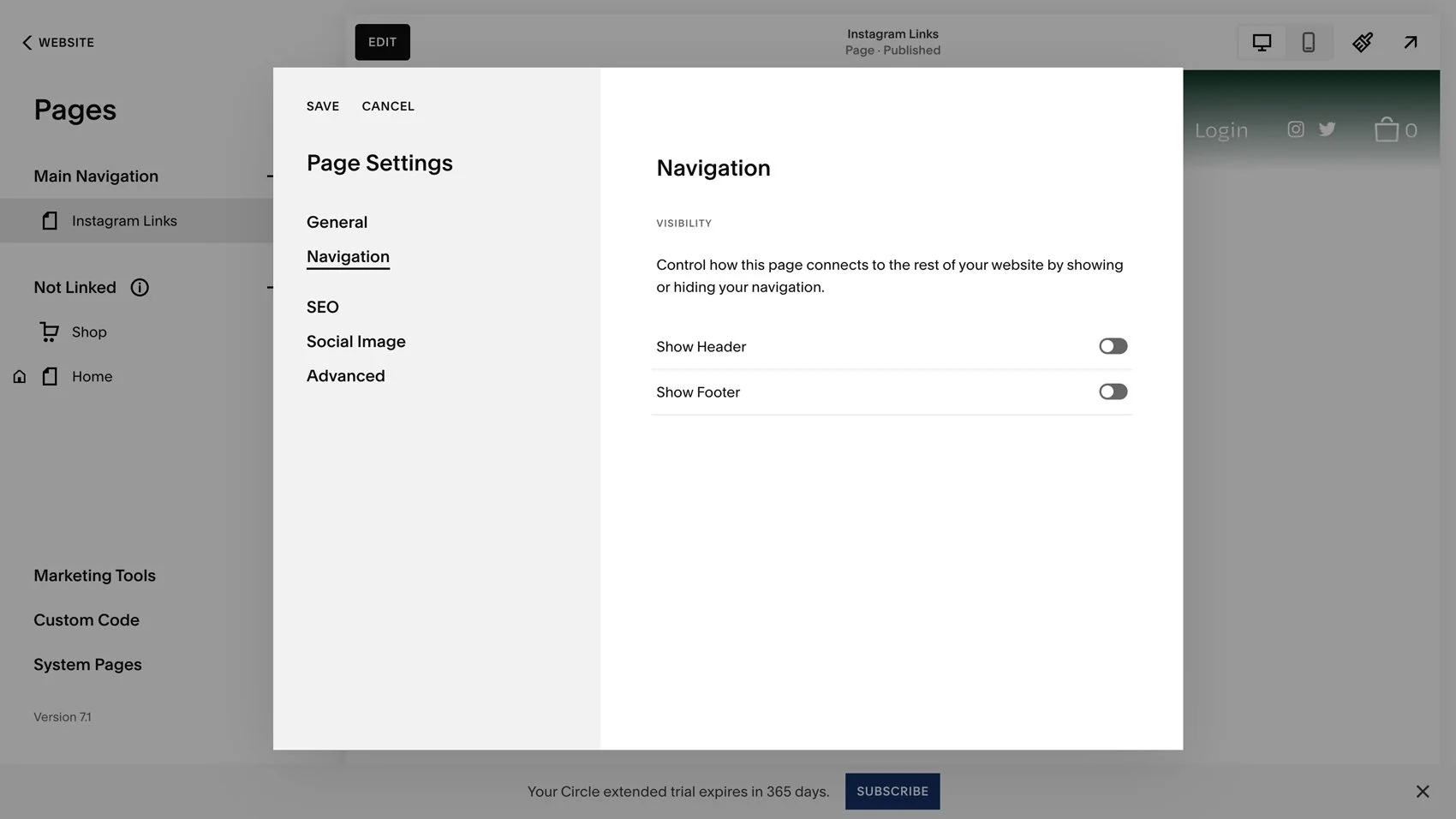
V. Take Your Link in Bio Page Live
Publish the page and copy its URL into your Instagram bio so your followers can visit it.
Tips for Designing a Link in Bio Page
There are a few things to keep in mind while designing your page:
Prioritize important links
Too many links can be confusing, so focus on the key links that take visitors to your most important content.
Keep links updates
Make sure your links are kept up-to-date so you’re not directing visitors to 404 pages.
Design mobile-first
Make sure your Link in Bio page is mobile-friendly and that links can be easily clicked on small screens.
Add value
Use your Link in Bio page to share additional value, like a newsletter opt-in freebie, discount code, or featured product.
Shop Art-Directed Squarespace Templates
If you want to get started with Squarespace but aren’t confident with design, explore our collection of art-directed Squarespace templates. Each comes with a complete collection of 15+ pages, an extended 12-month Squarespace trial, and a 25% discount on your first year of Squarespace with an annual plan.