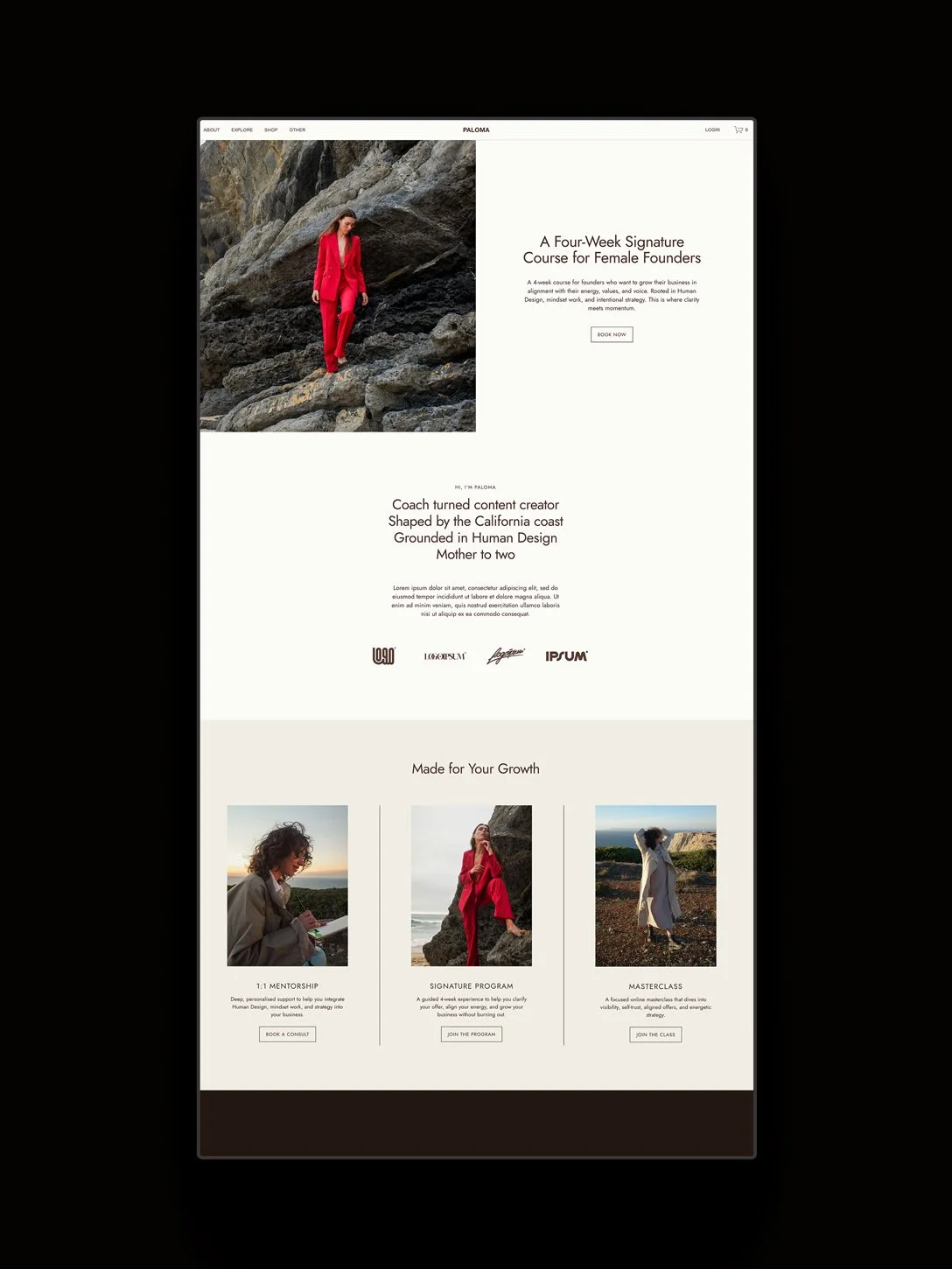
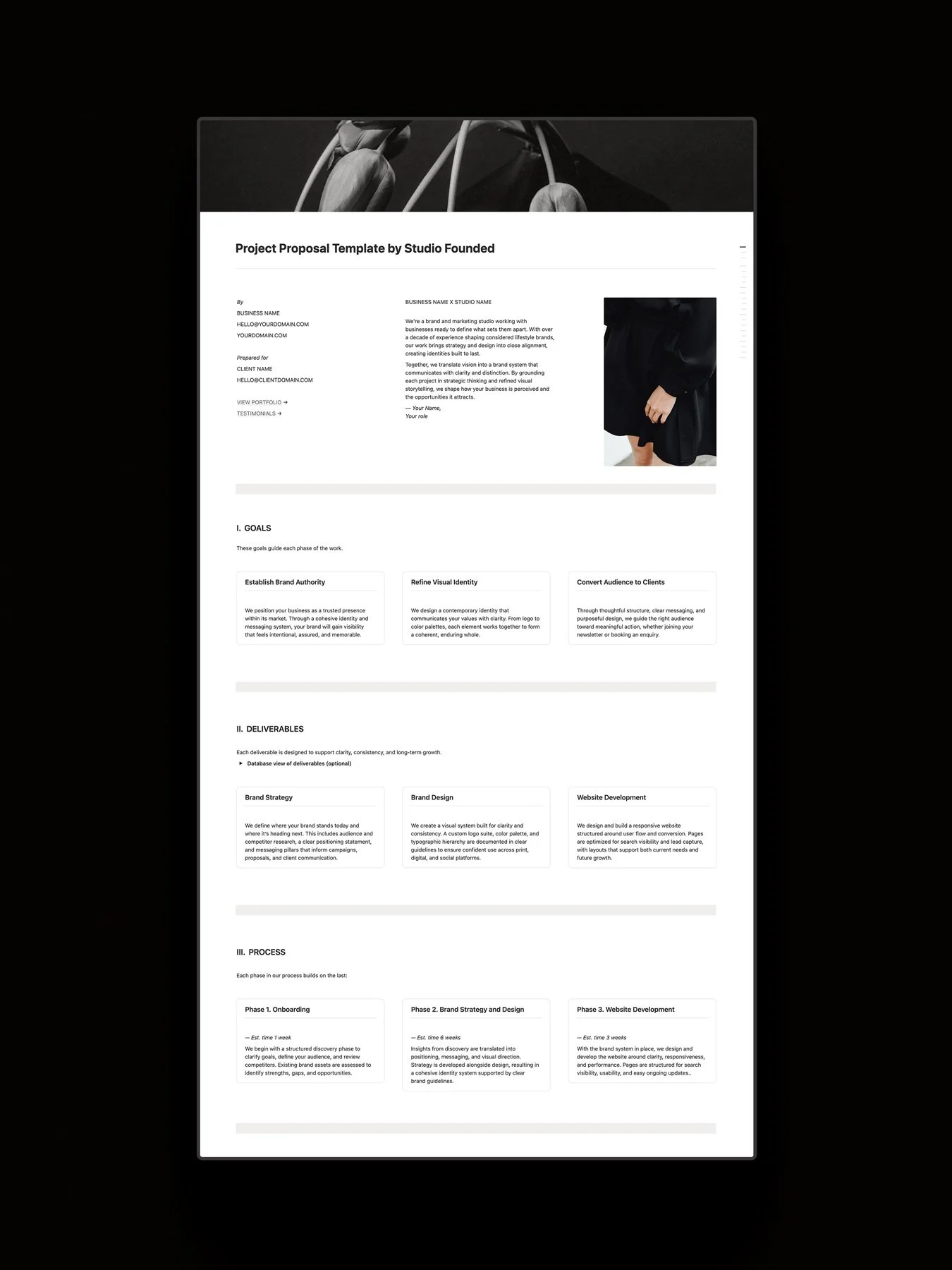
Squarespace* websites can be on the slower side compared to other website builders, especially when you start adding custom fonts, images, and animations.
In our studio we love building expressive websites with interactivity and animation, and we wanted to explore methods for boosting our site speed as much as possible while keeping our beautiful design features. We currently have 2143 lines of CSS and 246 lines of footer JavaScript, plus page header scripts, three custom font files, and plenty of images.
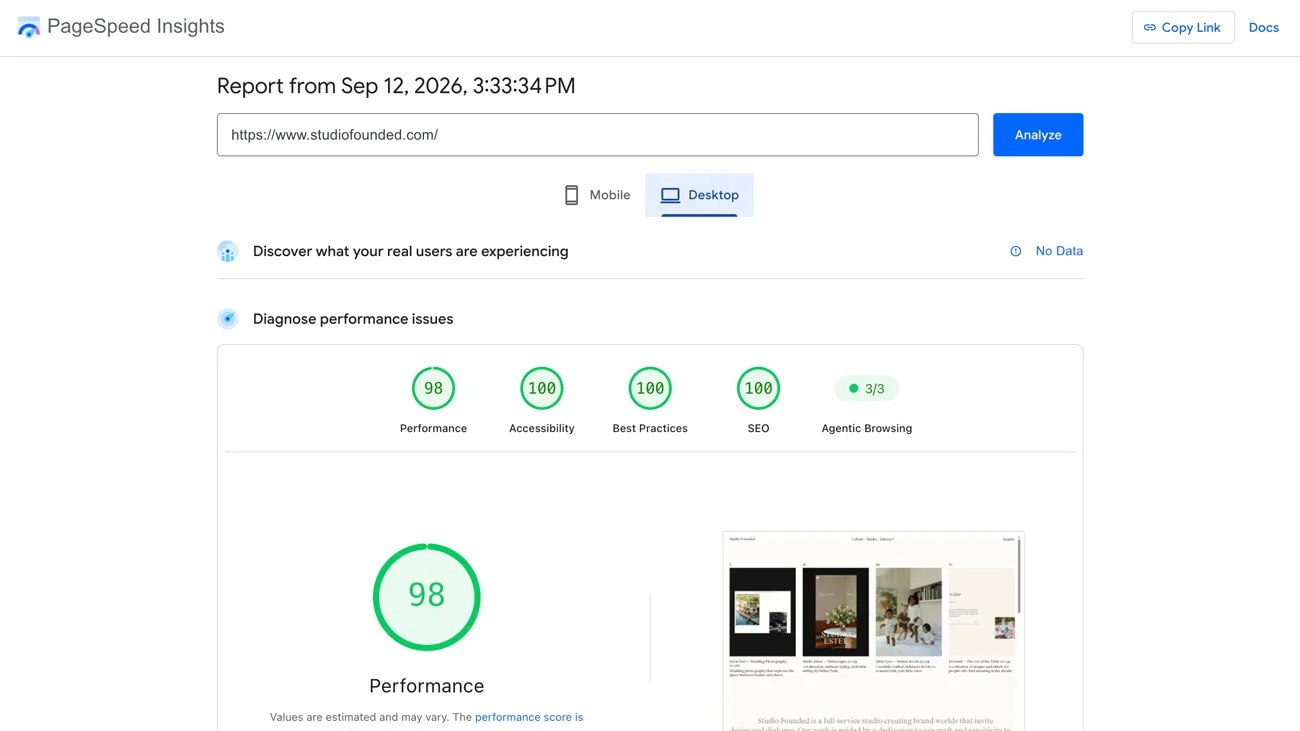
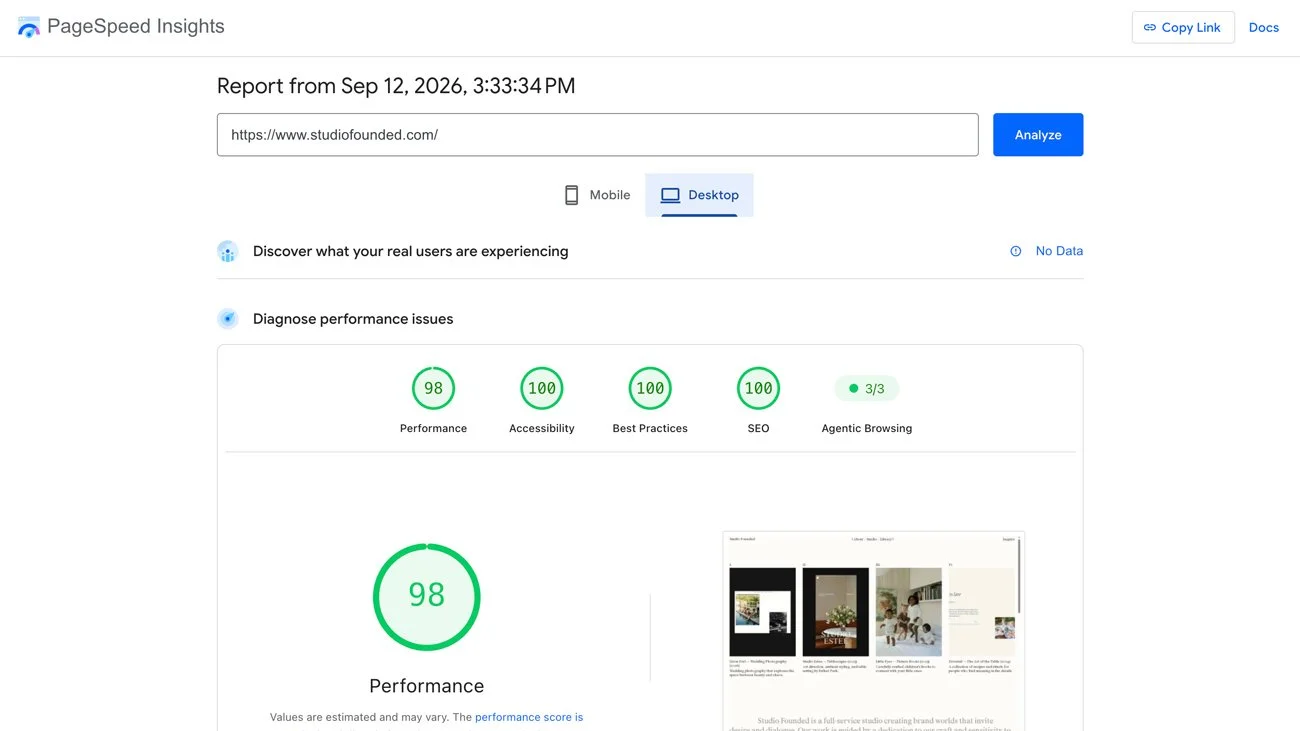
We’ve been able to achieve a Home page Google Lighthouse score ranging from 97-99 on desktop. In this post we’ll share some of the methods we used to achieve this and how you can implement them. Our mobile scores currently range from 57-83, and we are exploring ways of improving mobile speeds, planning to address this in a separate blog post. However, much of what we explore in this post will also support your mobile performance.
Please note: These are advanced concepts that require working with CSS and JavaScript. While we aim to breakdown these ideas clearly, in order to avoid broken code or other site issues, we recommend working with a Squarespace developer to implement these changes. Please get in touch with our studio if you would like support improving your Squarespace site speed and performance.
Affiliate disclosure: Some of the links in this article are affiliate links, marked with an asterisk (*). Studio Founded may receive a commission from qualifying purchases made through these links, at no additional cost to you. You can read our full affiliate disclosure here.
How We Tested
We tested using Google Lighthouse to test our site’s performance because it measures Core Web Vitals, which are used as one of Google’s page experience signals.
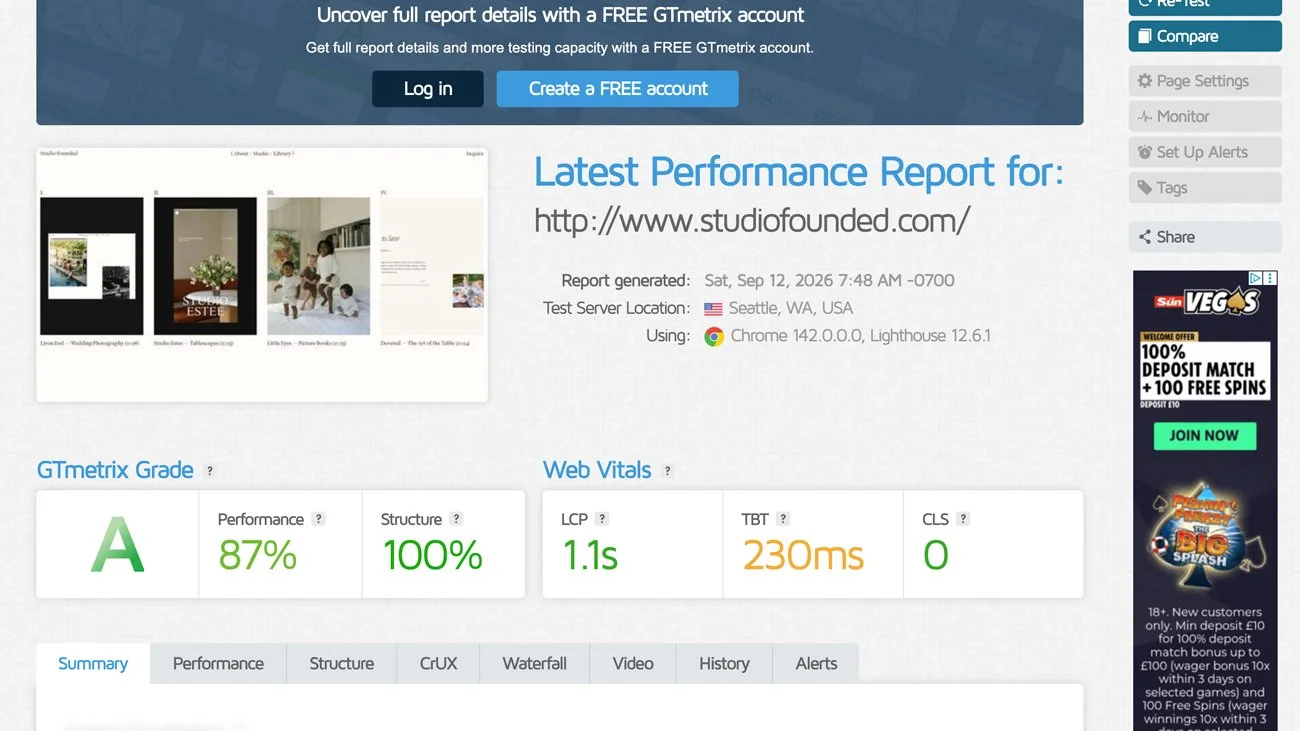
We also use GTMetrix to test site loading speed, and Chrome DevTools to test how site performed in slower conditions. It’s always a good idea to test your site using multiple tools because performance can vary depending on how a tool runs the test, and another tool may give different results.
We didn’t record a baseline before we began testing, as we began by simply wanting to improve our website after noticing slow loading speeds. While we can’t share a before and after comparison for the changes, we can share the techniques we’ve used and tested, and the performance scores we’ve achieved while maintaining our custom code, images, and fonts.
Step 1: Optimizing Images
Images are one of the most common reasons for slow loading, particularly when images are used above the fold.
Resizing Images
Before uploading an image to Squarespace, we always optimize it. There are multiple ways of doing this, but we tend to use Adobe Photoshop and the save for web feature (File > Export > Save for Web), making images under 250KB with an image quality of 60 and a size no larger than 1500 × 1500px. This isn’t a hard and fast rule, but we find that this tends to work well. In some cases, Google Lighthouse recommended making an image’s dimensions smaller, and we resized them which further improved loading speeds. It’s worth regularly running each page through Lighthouse so you can test image size and site performance.
Using WebP
Squarespace now converts images to WebP, a modern file format that loads images faster than JPG, which has been really helpful for improving our page speeds. You don’t need to do anything here as Squarespace 7.1 will convert your images automatically.
Preloading Above the Fold Images
We had difficulty optimizing the images in our above-the-fold area, as even when highly compressed, they slowed the Largest Contentful Paint. The adjustment we made was to preload our first header image. The script sits in the Home page Header Code Injection area:
<link
  rel="preload"
  as="image"
  href="https://images.squarespace-cdn.com/content/v1/image-name.jpg?format=750w"
  imagesrcset="
    https://images.squarespace-cdn.com/content/v1/image-name.jpg?format=500w 500w,
    https://images.squarespace-cdn.com/content/v1/image-name?format=750w 750w,
    https://images.squarespace-cdn.com/content/v1/image-name.jpg?format=1000w 1000w
  "
  imagesizes="(max-width: 768px) 86.75vw, (max-width: 992px) 56.41vw, 41.24vw"
  fetchpriority="high"
>
(If testing this script, remember to replace the URL with your own image URL hosted on Squarespace).
This script tells the browser that this image is important and should be loaded in quickly, which can speed up the Largest Contentful Paint.
You do not need to add this to every image on your site, or even every image above the fold. Usually, you only need to preload the first image, and only if you’re having issues with your Largest Contentful Paint.
Step 2: Cumulative Layout Shift
We ran into problems with Cumulative Layout Shift, which measures any unexpected movement of content on your pages as it loads. Many things can cause layout shifts, from font rendering to animations and custom CSS. Personally, we found that font rendering was causing the issue (more on this below).
It’s impossible to diagnose the root the cause of cumulative layout shift issues without looking at a specific site and assessing it on a case-by-case basis. If you’d like support with Cumulative Layout Shifts, please get in touch.
Step 3: Optimizing Fonts
Fonts are another source of speed issues, often when there are too many fonts uploaded, or because they need to call from third-party sources like Adobe Fonts.
Reducing Fonts
The simplest way to reduce this overhead is to use fewer custom fonts (typically no more than 1-3) and removing any that you don’t need. Where possible, switch to system or web safe fonts.
Self-Hosting Fonts
Where using brand fonts, we recommend self hosting the font file over using fonts in Site Styles pulled from Google Fonts or Adobe Fonts. Self hosted fonts tend to load faster and reduce calls to third-party websites.
Before uploading your font, remember to not leave non-system fonts in Site Styles. Switch them to system fonts wherever possible, otherwise Squarespace may still load the font even though you are also using self-hosted fonts.
You can then upload your custom font to the Custom CSS panel in Squarespace. Use WOFF2 files for best web font delivery. You’ll need to use CSS to apply your custom font to headings and other areas of your site. We won’t walk through the full process of writing this code here, but we do recommend using SquareStylist’s FontWiz tool to help you write your CSS, or reaching out to us or a fellow designer for support.
Font Display
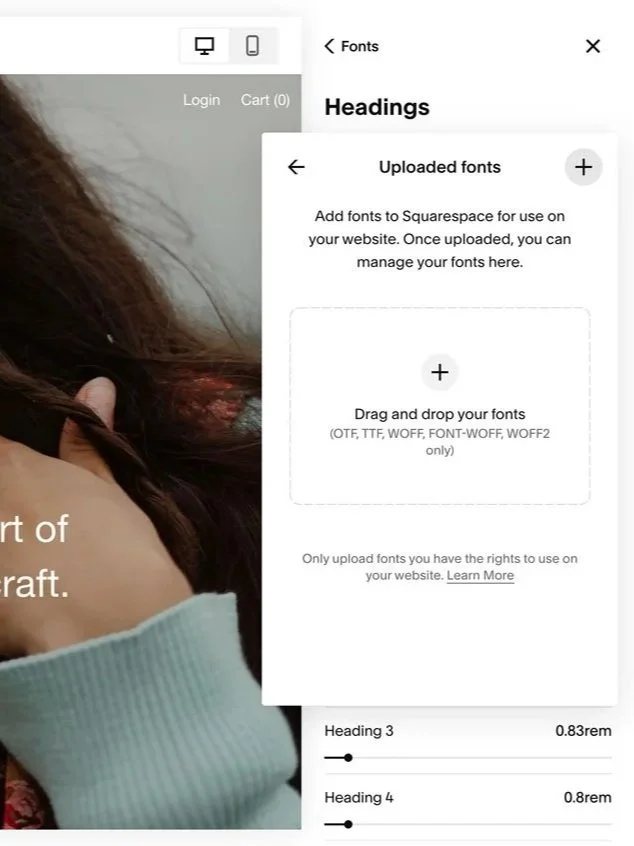
You can now upload fonts to Squarespace in Site Styles, which is perfect if you don’t want to handle CSS font styling. We haven’t tested the impact on site speed and whether there’s any difference between fonts self-hosted in Site Styles VS Custom CSS. However, we personally like control that the Custom CSS panel offers.
One customization we made was to use font-display: swap; in our custom CSS, which allows a web safe system font to load before rendering in your custom font, so visitors don’t have to wait for your custom font to load before seeing any text.
However, we later changed this to font-display: optional; as we were seeing Cumulative Layout Shift issues appearing on font swap. We don’t recommend this method for everyone, as if your site is otherwise slow to load, it can cause only your fallback font to render and your custom font not to appear. We used Chrome DevTools to test throttle and network speeds to check that our custom fonts were loading in properly, and found that font-display: optional was working for our particular usage, but recommend checking on a case-by-case basis. As always, please get in touch if you’d like support.
Font Preloads
Self-hosting fonts via the Custom CSS panels has the added benefit of allowing you to preload them. We do not preload all our custom fonts, only the one that loads above the fold. You can preload a font using the code:
<link
  rel="preload"
  href="YOUR-FONT.woff2"
  as="font"
  type="font/woff2"
  crossorigin
>
You can place it in the Site Header Code Injection, remembering to replace the YOUR-FONT.woff2 URLs with your own font URLs. You can grab the URL by going to the Custom CSS panel > Custom Files > Click on your font file and you’ll see its URL appear in the Custom CSS area.
Step 4: Optimizing Animations
Squarespace’s sitewide animations (Site Styles > Miscellaneous > Animations) can be quite resource heavy. We love animations and don’t necessarily recommend removing them, but if site speed is a priority for you, it’s worth weighing it against site-wide animations and toggling them off if you don’t need them. We found that the site-wide animations were eating up resources and opted to turn them off. You can still use Squarespace’s Block Animations to add movement in specific areas, and we personally still use custom CSS and JavaScript animations in smaller areas of the site.
Step 5: Optimizing CSS
CSS is typically lightweight, but it’s important to fix any unnecessarily large or redundant code and errors that could prevent the CSS from being parsed or rendered correctly.
Step 6: Optimizing JavaScript
JavaScript has a much larger impact on site speed than CSS. Personally, we use a lot of JavaScript, both our own code and plugins from third-party resources. Learning how to optimize it had the biggest effect on our site speed and performance.
Deferring Third-Party Scripts
If you use a third-party script and it doesn’t need to load immediately (for example, it doesn’t render in the Header or above the fold area), then you can defer it. For example, the script would change from:
<script src="https://example.com/script.js" ></script>
To:
<script src="https://example.com/script.js" defer></script>
This tells the site that this script doesn’t need to load right away, which can speed up your initial loading times, though you don’t add defer to every script as some need to load in sooner.
Limit JS to Specific Pages
For scripts placed directly in your footer, the key is to adjust the code so that it only runs on the page it’s needed on, and isn’t running site-wide unnecessarily. What that means is, if you’re using a JavaScript feature for your About page, make sure it isn’t also loading on Home and other pages. For example, you can wrap your JavaScript in code such as:
const section = document.querySelector("#section-ID");

if (section) {
  // Run the code for this section
}
Which checks whether this section ID exists on a page (you can add section IDs using Squarespace’s anchor links feature) before running the script. If the section ID doesn’t exist on the page, the script won’t run.
You can also limit scripts to the specific pages that the code should load on, which means your site can handle much more JavaScript, because it’s not always trying to run everything. You can do this in your script, or simply move code out of the Sitewide Code Injection and into specific page headers.
Keep Scripts Lightweight
You should also keep scripts lightweight where possible (again, consult a developer for support). Lightweight in this case doesn’t necessarily mean reducing the number of lines in your JavaScript. It means writing JavaScript that avoids a lot of calculations or page listeners, or that runs unnecessarily often, for example. You should also remove any JavaScript that isn’t being used.
Step 7: Test Often
Improving site speed is often an iterative process of testing, making changes, and testing again to see what improved. Remember to test after each change and see if and how it affects your performance, speed, and Largest Contentful Paint.
Concluding Thoughts
With this post, we hope to show that Squarespace can be made to load quickly, and that you don’t need to remove custom fonts and code to do so. We’d love to hear from you if you found this post useful, or if you’d like any support implementing these changes on your own website. Feel free to reach out to us here.