Google Search Console is the tool that you can use to submit websites and pages to Google so they can appear in Google searches.
If you’ve launched a website but it isn’t showing in Google, and you haven’t indexed your site yet, this is likely why. Sites that haven’t been submitted to Google Search Console can still be indexed by Google, but it can take longer. Submitted your pages for indexing can speed up the process.
Search Console also tells you how your site is performing on Google, with information like how many clicks your site is getting from Google, which pages are performing well, and the keywords that are sending traffic to your site.
In this guide, we’ll walk you through connecting your Squarespace* site to Google Search Console step-by-step.
Affiliate disclosure: Some of the links in this article are affiliate links, marked with an asterisk (*). Studio Founded may receive a commission from qualifying purchases made through these links, at no additional cost to you. You can read our full affiliate disclosure here.
How to Connect Your Squarespace Site to Google Search Console
Before you begin with the steps below, make sure your Squarespace site is live and accessible, with your domain connected to it.
Once that’s done, you can:
1. Sign in to Google Search Console
The first step is to log in to Google Search Console with your Google account. If you don’t have one, you can create one for free.
2. Add Your Domain Property
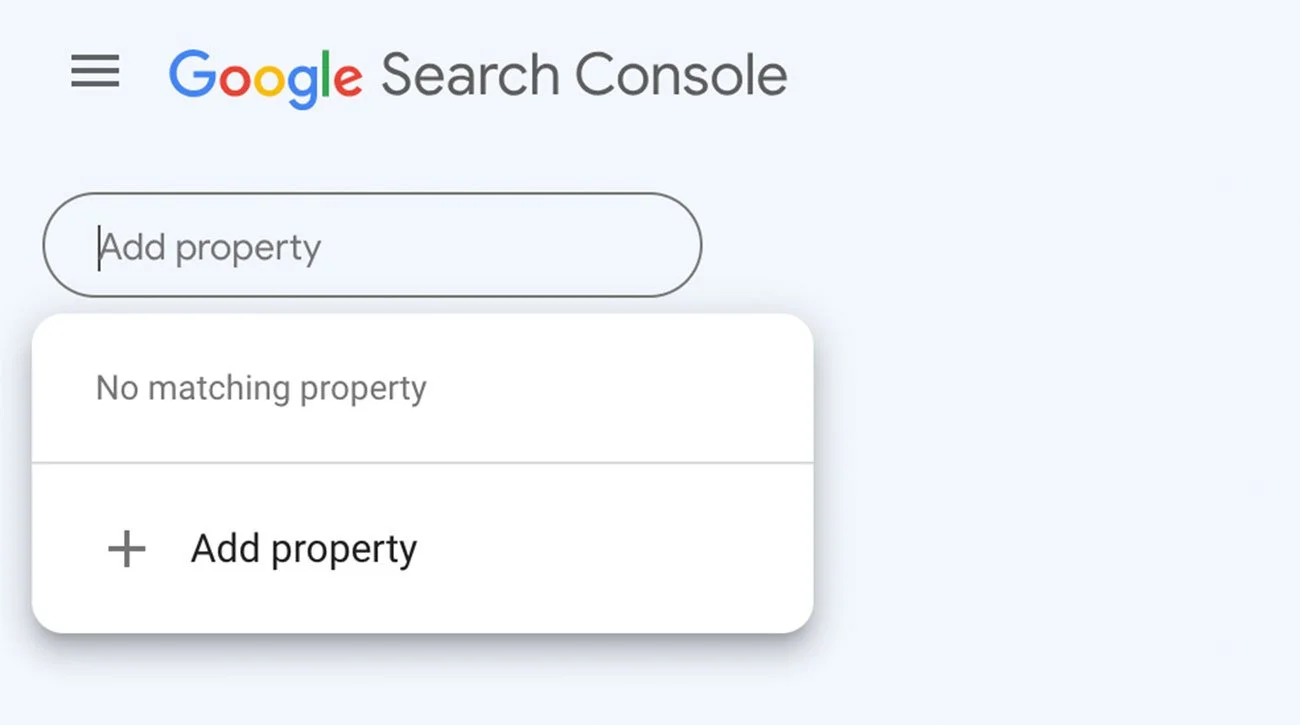
Once you’re logged in, add your Squarespace site as a “Property” in Google Search Console by clicking Add a Property > Domain > Enter your website URL (e.g., yourwebsite.com) and click Continue. This will add your domain to your Google Search Console account.
3. Verify Your Ownership
Google will need to verify that you own the website. We recommend the DNS TXT method:
Copy the TXT record that Google provides.
If your domain is managed by Squarespace, go to Settings > Domains > Your domain > DNS Settings > Add the TXT record.
If your domain is managed by a third-party, follow their steps to add a TXT record.
Once the verification process is complete, you should see a message confirming that your site has been successfully verified.
How to Submit Your Sitemap to Google
Once your account and domain are set up, you can submit your sitemap.
1. Go to the Sitemaps Section
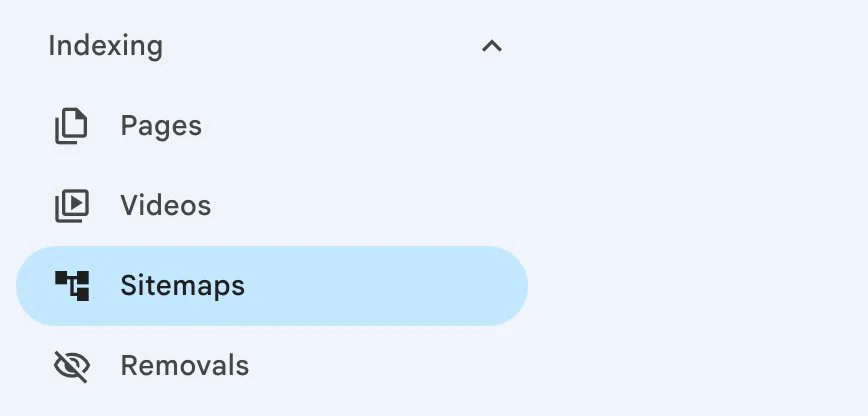
Under Indexing in the left-hand panel, navigate to the Sitemaps tab.
2. Add Your Sitemap
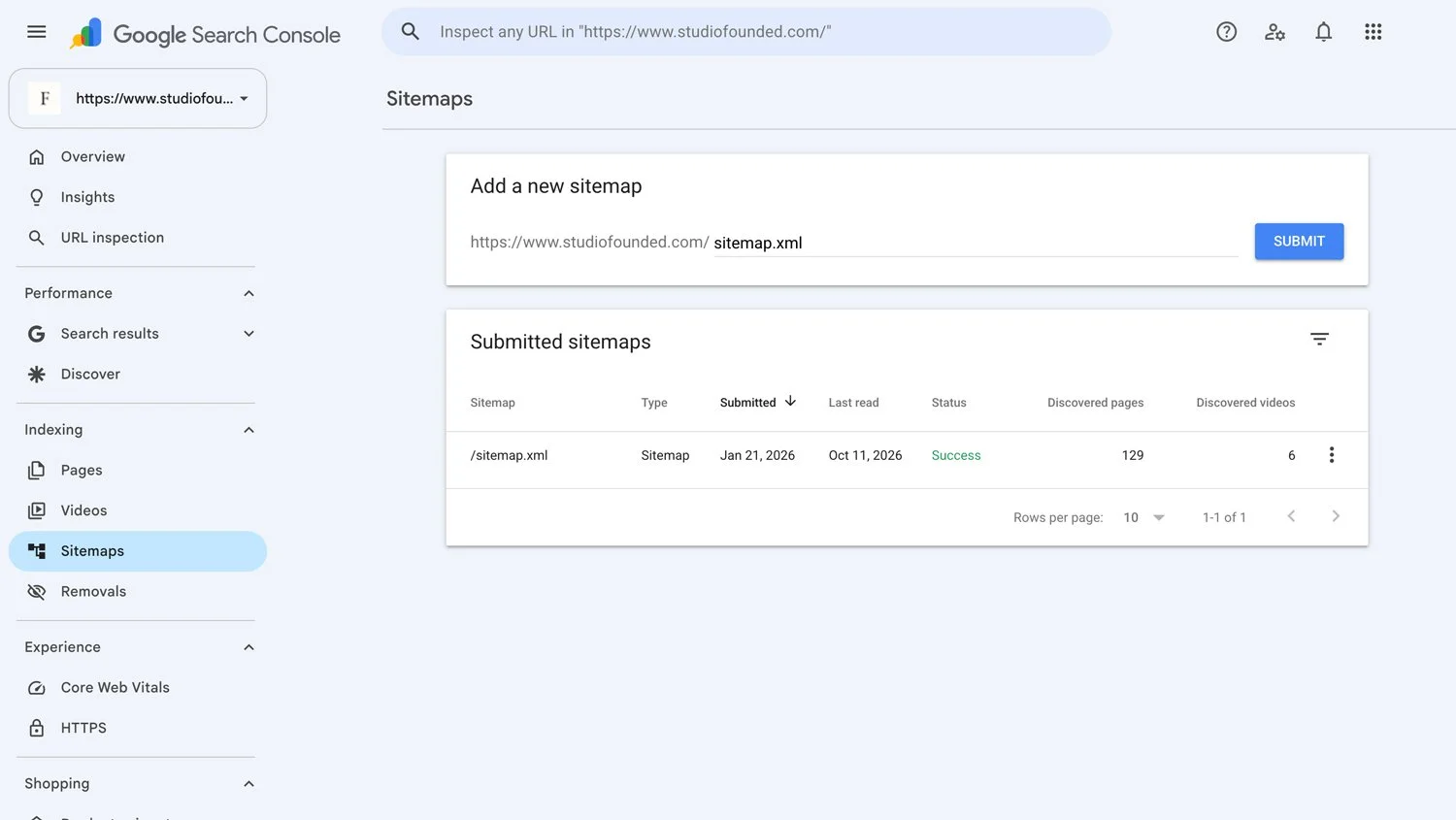
Click Add a New Sitemap and enter your sitemap. Squarespace sitemaps are automatically generated, and structured as https://yourdomain/sitemap.xml.
Once you’ve added it, select the Submit button.

3. Confirm
If your sitemap was found, you’ll see the Success message appear under Status in Submitted Sitemaps:
How to Index Your Pages
After submitting your sitemap, give Google some time to crawl and index your site.
Once your pages are indexed, there may be times when you want to ask Google to index specific pages. For example, if you’ve made an update to the page that you want Google to see. You can ask Google to index the updated page by:
1. Copy the page URL
Copy the full page URL to your clipboard.
2. Paste it into Google Search Console
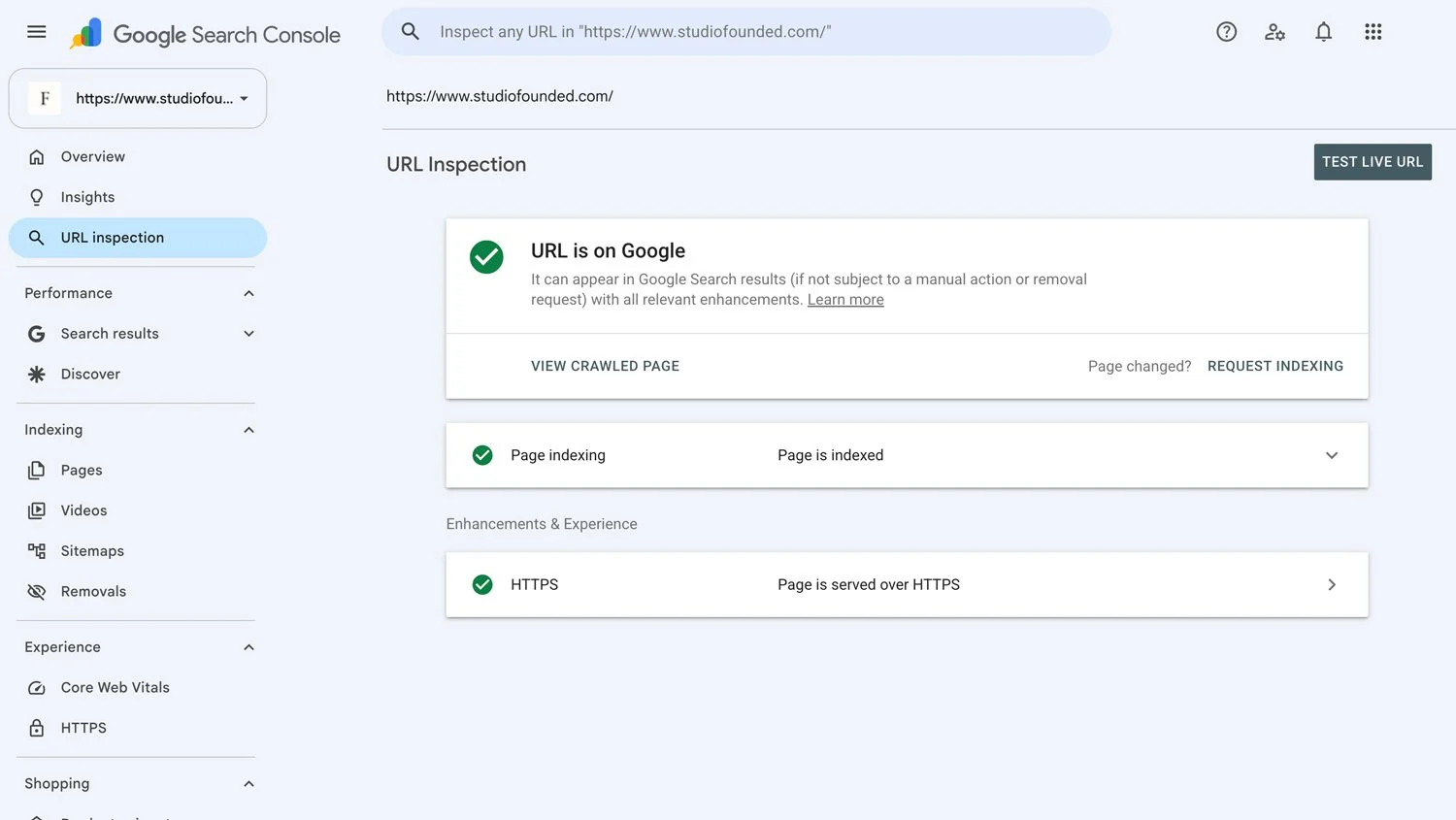
Paste your URL into the URL inspector at the top of the page. Google will run a quick scan to see the page is available.
3. Request Indexing
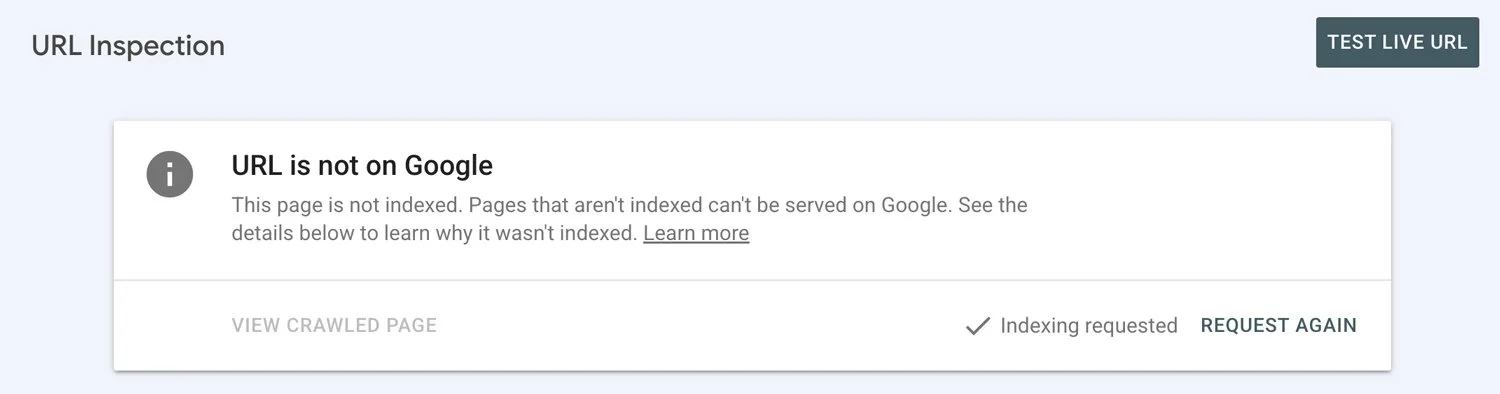
Press the Request Indexing button. It sometimes takes a few minutes for Google to submit the request. Once the request is submitted, wait for Google to index the page. You can check back in a few days to see if it’s complete.
Tips for Optimizing Your Squarespace Site for Google
There are a few things you can do to optimize your Squarespace website for better performance in Google:
Optimize Your Content
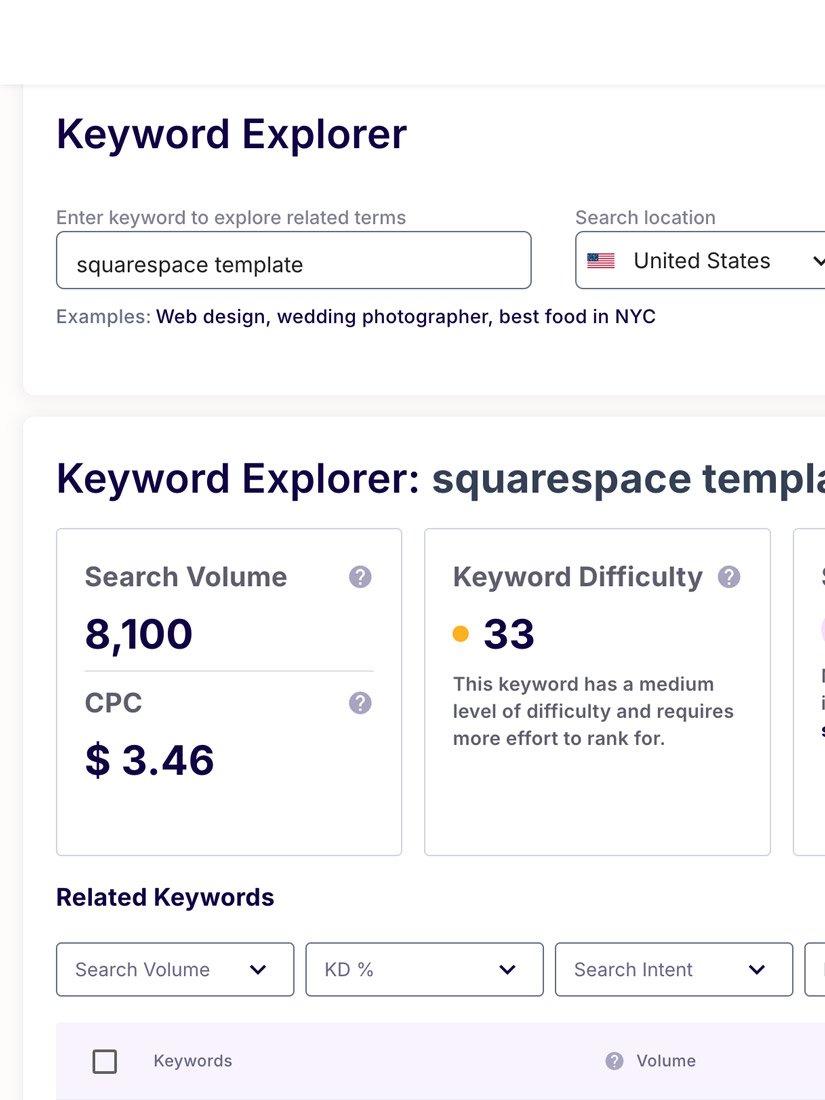
Research keywords and add them to your page content. You can use a keyword research tool like Google’s Keyword Planner or the tool included with SEOSpace*, the SEO plugin for Squarespace.
Add Page Metadata
Add page metadata like image alt text, page SEO titles, and page SEO descriptions to help your content be found in Google.
Fix SEO Errors
Google Search Console lets you know of issues that are preventing indexing. Fixing them means that Google will be more likely to index and show your pages. You can also use SEOSpace* to scan your site for on-page errors like missing meta data, missing image alt text, multiple H1s, and more.
Monitor Your Performance
Google Search Console lets you know your website’s clicks, impressions, and click-through rates. You can connect Google Search Console to your Squarespace site by going to your site and clicking on the Analytics tab > select Search Keywords > follow the steps on-screen to connect your site to Google Search Console, and see the keywords that people are using to find you in your dashboard. Return to the Analytics tab, and use it to monitor your site traffic and where it’s coming from. Together, these tools can help you monitor your site’s performance.
For a full step-by-step breakdown, visit our Squarespace SEO Checklist.
FAQs
Where do I find my Squarespace sitemap?
Squarespace auto-generates and updates your sitemap for you. You can find it at https://yourdomain/sitemap.xml.
How long does it take for Google to index a Squarespace site?
Google can index pages within a few days, but it can take longer, up to several weeks.
Why isn’t my page indexing?
A page may not be eligible for indexing if it has errors. Use Google Search Console’s URL inspection tool or an SEO plugin to check for issues preventing indexing. It also won’t index if the page’s settings prevent indexing, or if Google hasn’t crawled the page yet.
Hire a Squarespace Expert
At Studio Founded, we’ve built over fifty bespoke Squarespace websites. We’re Squarespace Circle Platinum members, and Squarespace Marketplace Experts. If you would like support with your Squarespace site, get in touch. We’d love to support you.

The Liren Squarespace template by Studio Founded.
Continue Reading










Shop Squarespace Templates