Squarespace Invoicing* is one of Squarespace’s lesser known capabilities. As Squarespace designers who regularly design and build for service providers we love this tool because it gives our clients an easy way to manage their projects from their website, without needing an expensive third-party tool.
With Invoicing, you can collect leads through Squarespace forms, manage projects and milestones, send invoices, proposals, and contracts, and collect payments. In this guide, we’ll explore how Invoicing works, how you can use it as your CRM, and a step-by-step guide to setting it up and using it in your business.
Affiliate disclosure: Some of the links in this article are affiliate links, marked with an asterisk (*). Studio Founded may receive a commission from qualifying purchases made through these links, at no additional cost to you. You can read our full affiliate disclosure here.
Does Squarespace Have a CRM?
You’ve likely heard of customer relationship management (CRM) tools like HoneyBook and Dubsado. They are used to manage client projects, collect leads, and take payments. The goal is to use a tool that helps you keep on top of your projects and manage your workflow.
Invoicing is Squarespace’s built-in client management system. It isn’t designed to be as comprehensive as something like Dubsado, which comes with advanced features like automated project actions, goal setting, and projected income, but it does include the essentials of a client management tool, and it’s built right into your website.
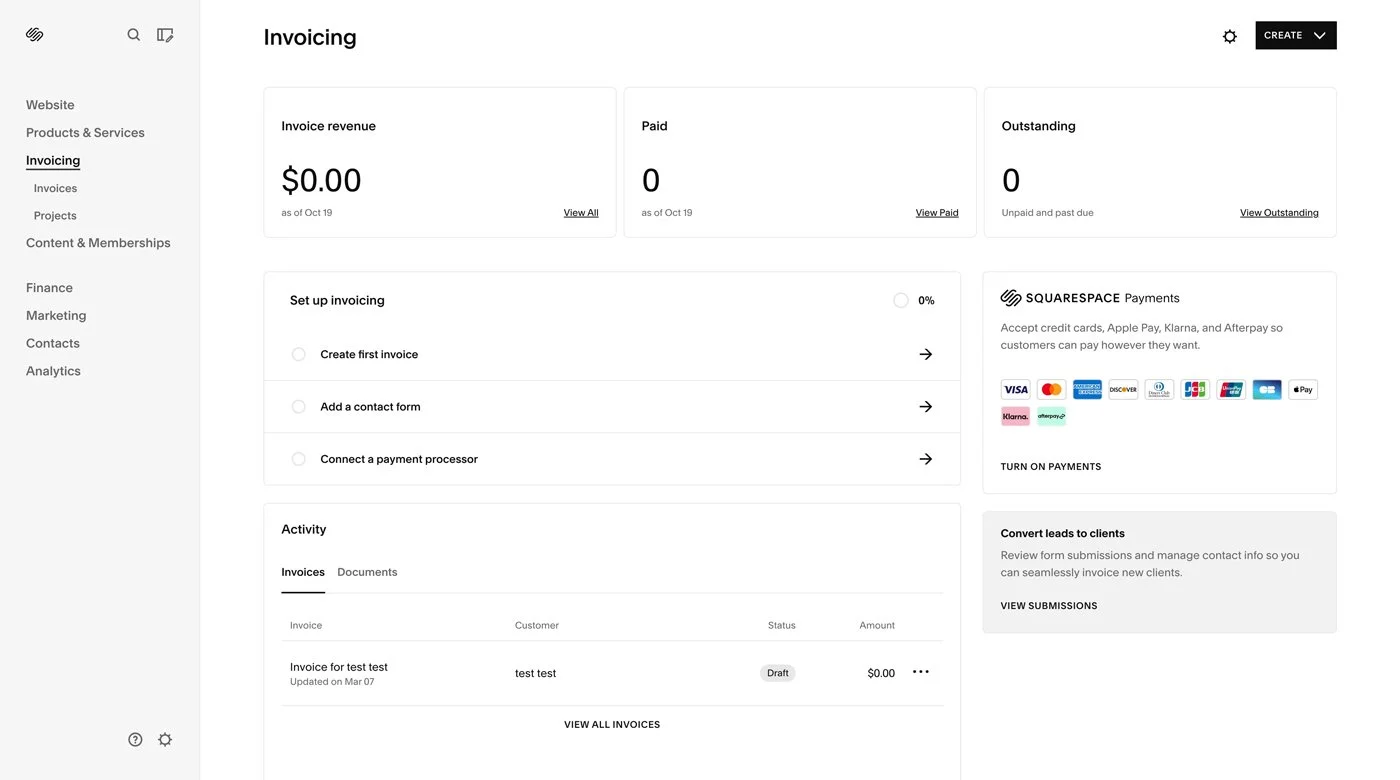
What Features Does Squarespace Invoicing Include?
Here’s what you can do with Invoicing*:
Collect & Qualify Client Leads
You can connect Invoicing to your Squarespace form blocks. When visitors inquire through your contact form, for example, you can then add them to your client management area so you can keep a list of leads and maintain a relationship with them.
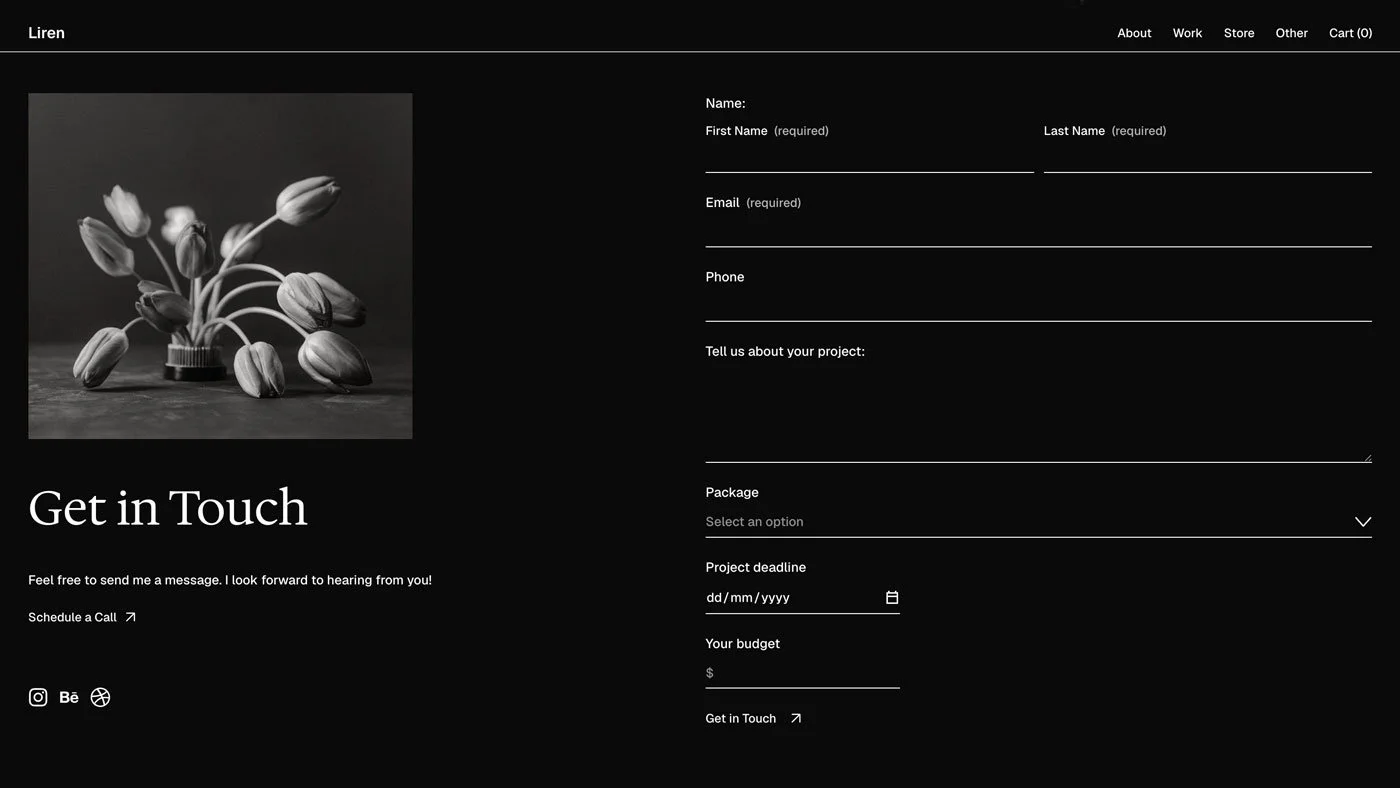
The Contact page included in the Liren Squarespace template.
Build Project Proposals
You can build project proposals from your Squarespace site and share them with your clients. If they want to move forward, they can accept the proposal.

Send Contracts
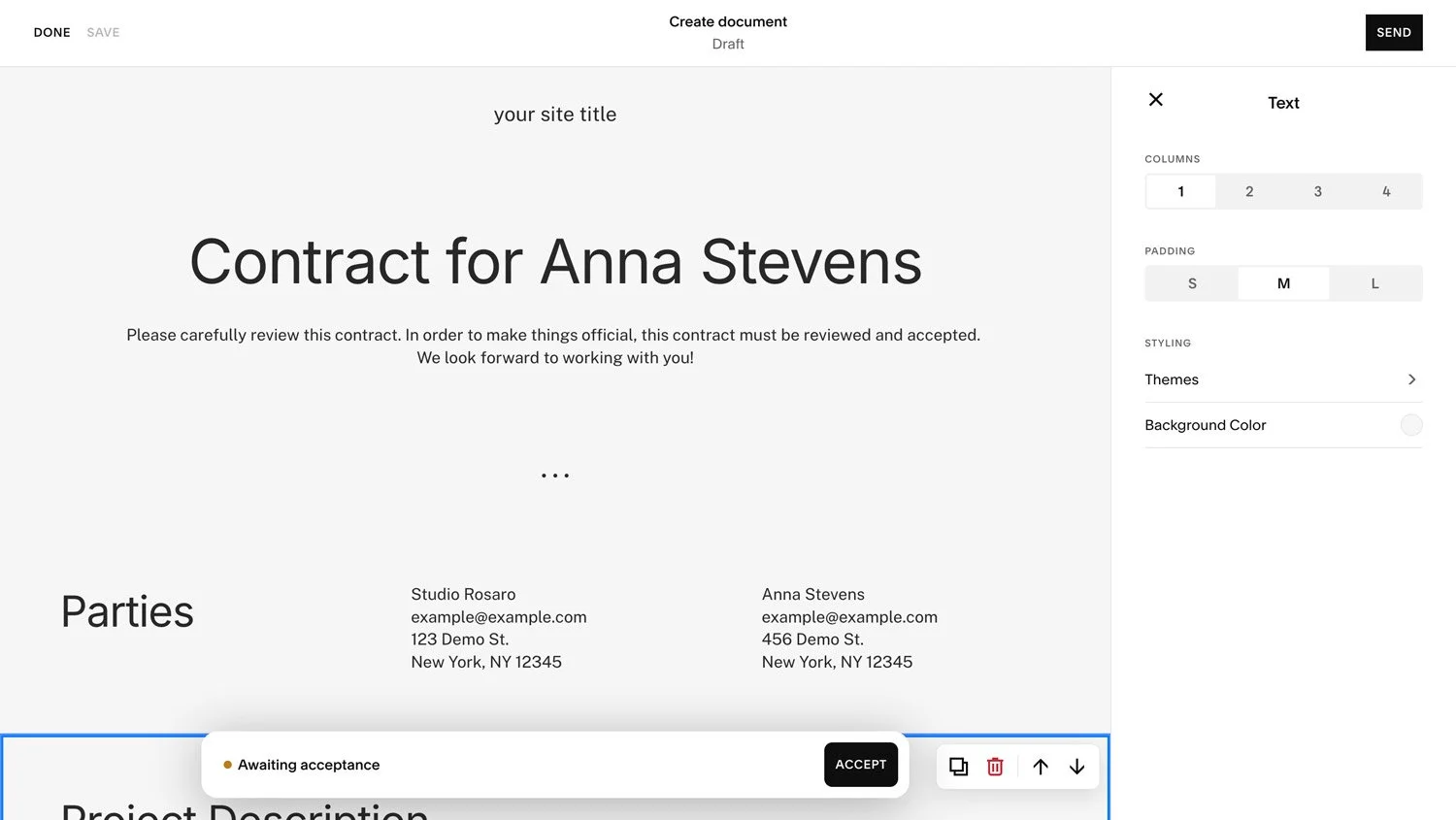
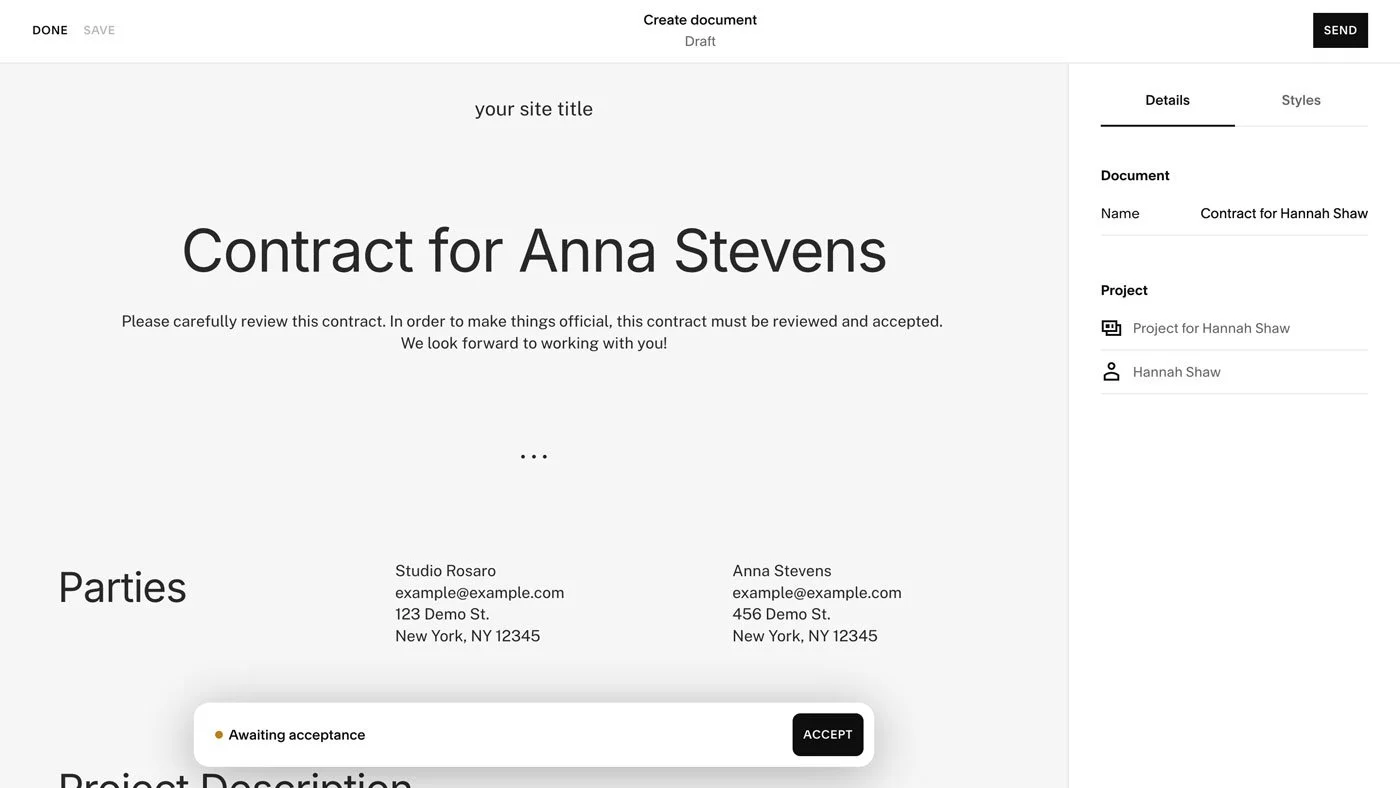
Build contracts in Squarespace with an easy-to-customize layout and a button for digital acceptance of the contract.
Share Estimates & Invoices
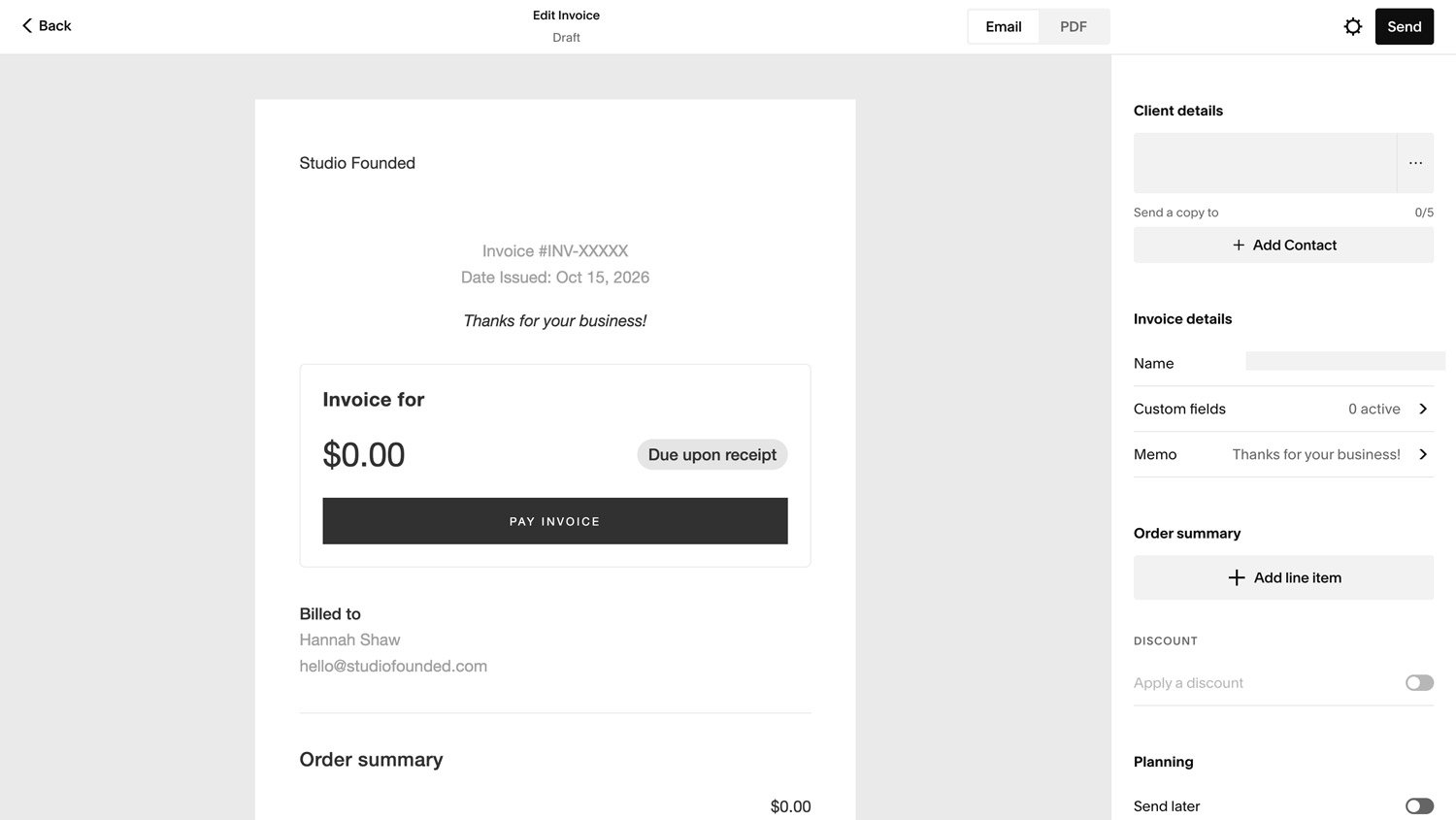
Create branded estimates to share with your clients with an accept button, then send an invoice or create a Pay Link, a quick and easy way to collect payments. You can set payment reminders and recurring invoices. There’s also the option to enable multi-currency checkout, so clients can see prices in their own currency.
Receive Payments
Your payments will be processed through Stripe and/or PayPal, or you can use Squarespace Payments, Squarespace’s own payment processor.
If you use Stripe or PayPal, they will charge their own payment processing fees. Squarespace won’t charge a transaction fee for using Invoicing.
If you use Squarespace Payments* as your payment processor, you will also pay a transaction fee, which differs depending on your Squarespace plan.

Manage Projects, Clients, and Milestones
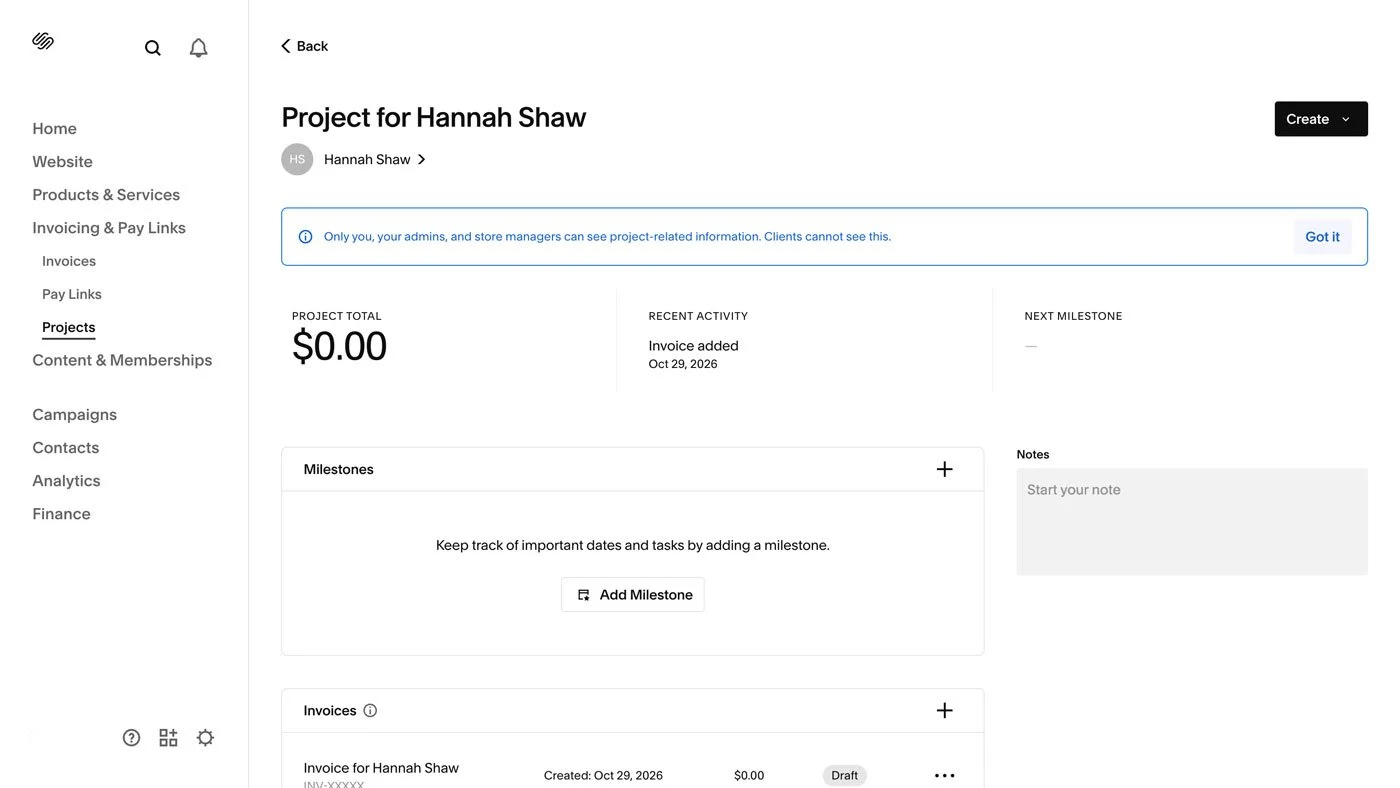
You can create a project for each client, where you can manage their documents, invoices, notes, and milestones.
Use it Anywhere
Invoicing is available on the mobile app, so you can create and send invoices while on the go and accept in-person payments.
Squarespace vs HoneyBook or Dubsado
You might want to choose a different CRM tool when you’re looking for a more advanced setup. For example, HoneyBook and Dubsado support triggers and conditional actions to automate more of your process. For example, you might want to create an automation that sends an onboarding questionnaire and creates the first task after the client signs the contract. You can also use these tools to connect integrations like email and accounting software.
Advanced CRM tools are great for businesses managing a lot of leads who want to automate a lot of their processes, and have the time or experience to set up triggers, automations, and integrations. Invoicing is best for when you want to keep things simple, don’t want to manage an extra tool, and don’t need to fully automate your processes.
How to Use Squarespace Invoicing (Step-by-Step)
Below is a step-by-step guide to setting up Invoicing and using each of its tools:
I. Set Up Your Squarespace Website
If you haven’t already, create your Squarespace website*. You can use the code STUDIO10 to save 10% on your Squarespace subscription.

II. Visit the Invoicing Tab
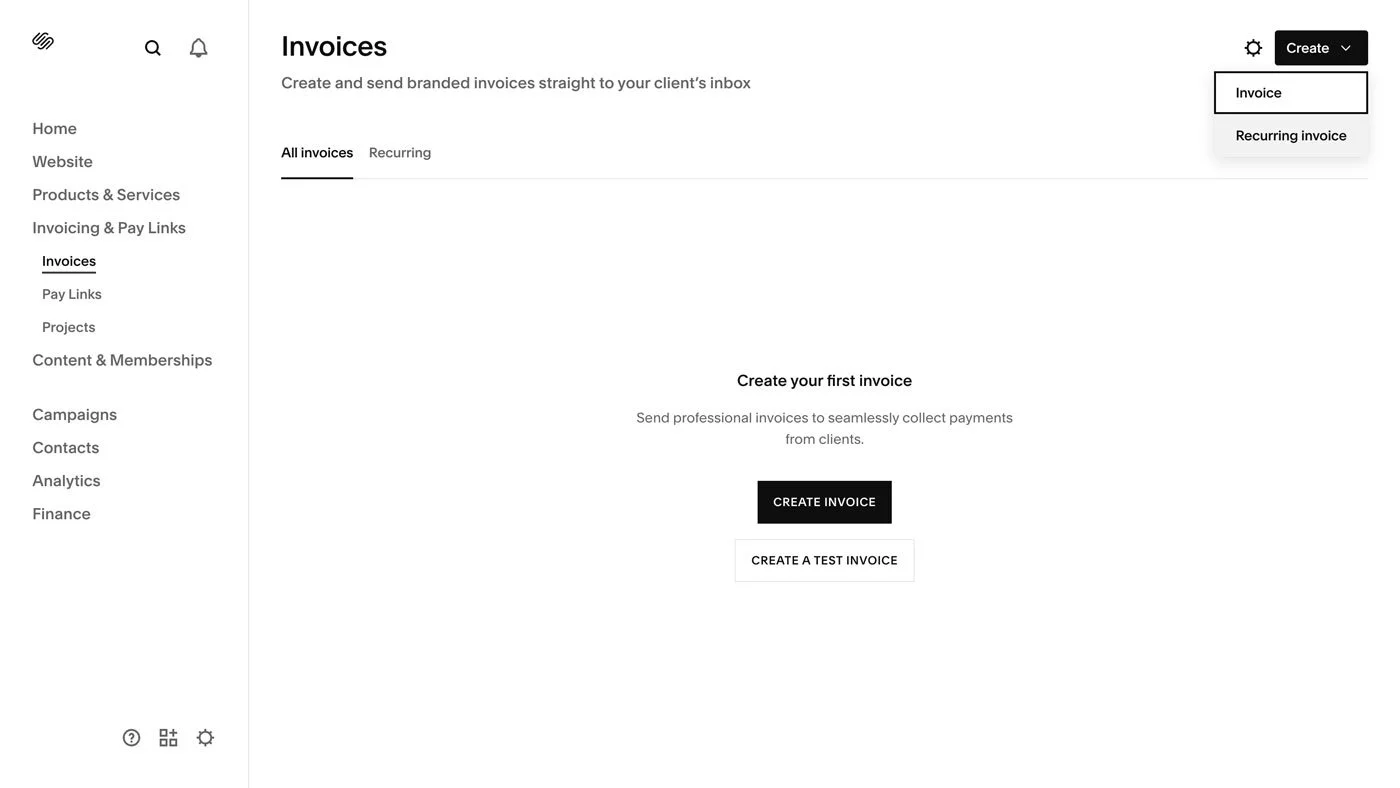
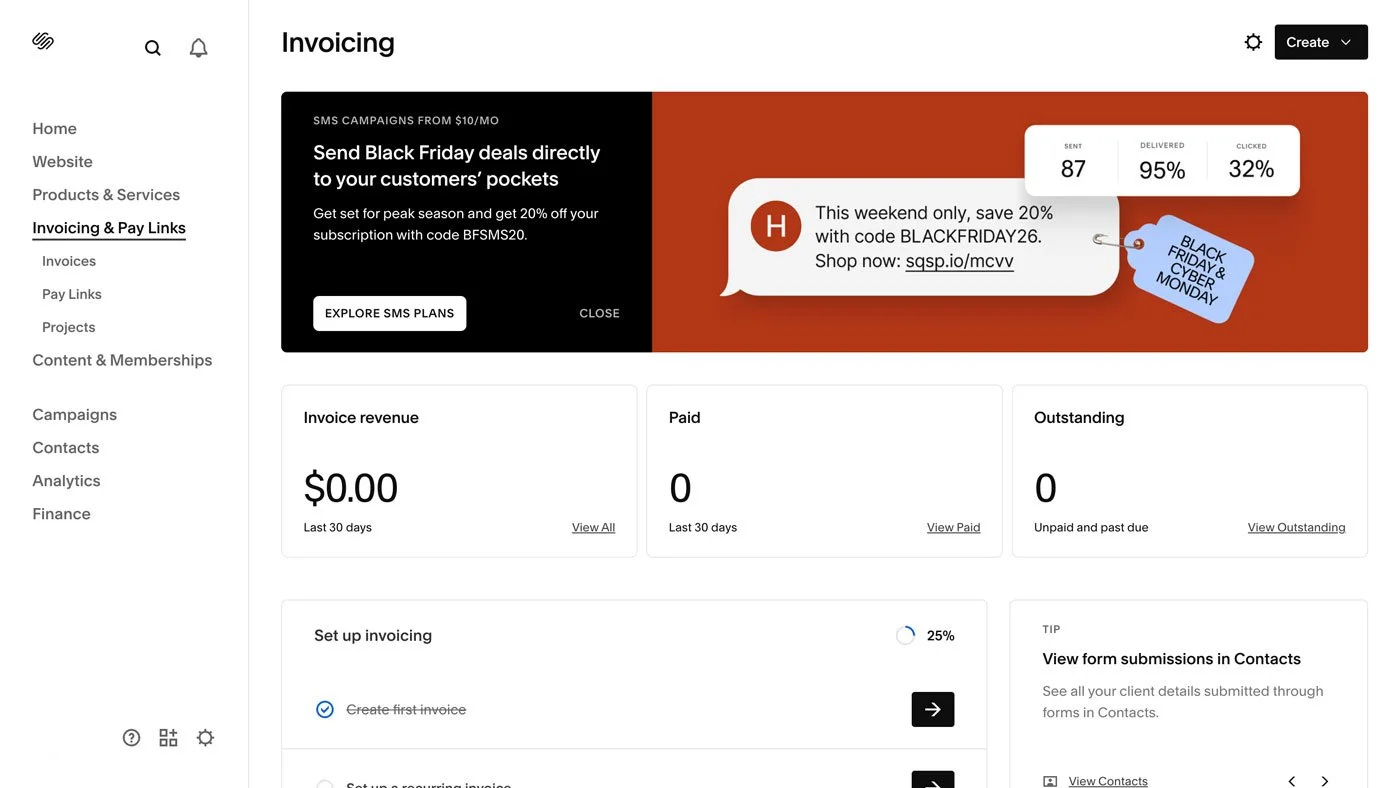
Inside your Squarespace website open the Invoicing & Pay Links tab. This is where your CRM tool lives in Squarespace.
III. Set Up Your First Project
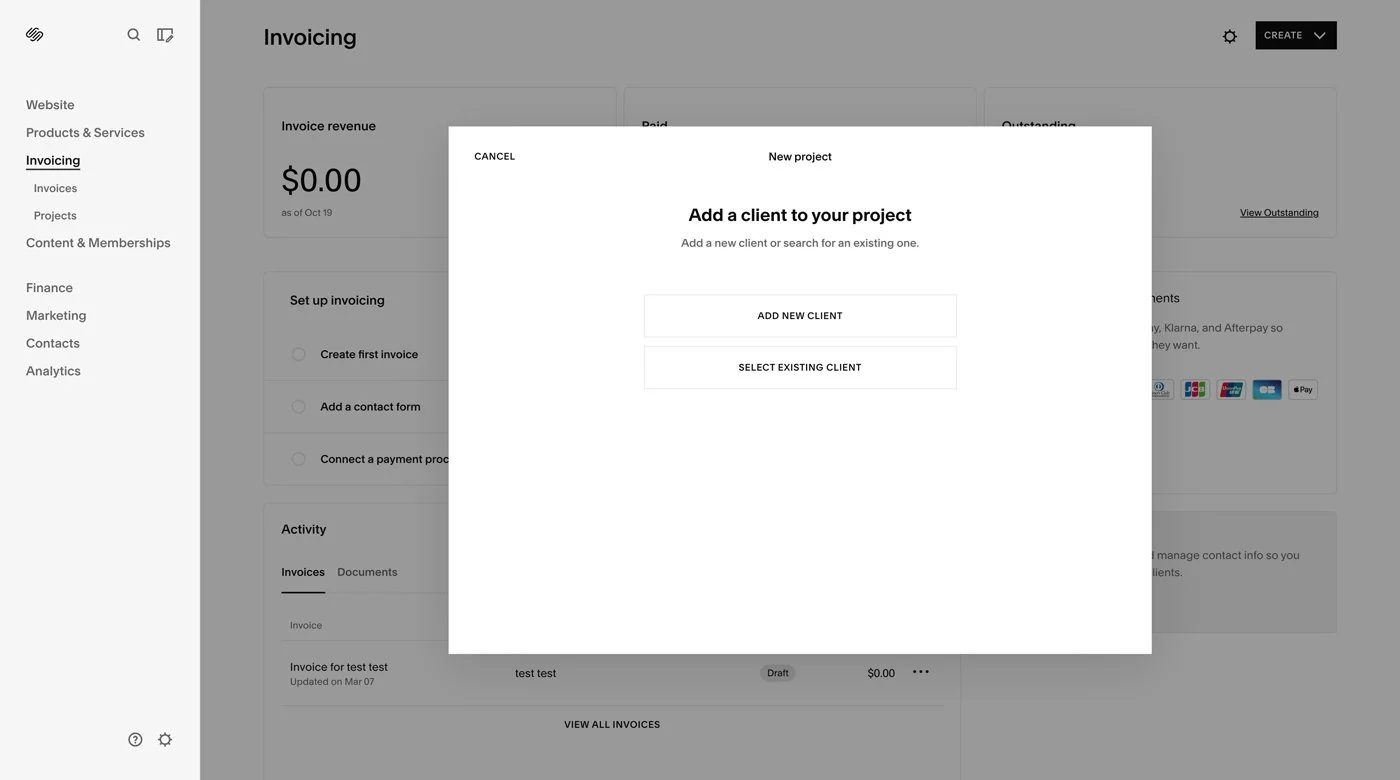
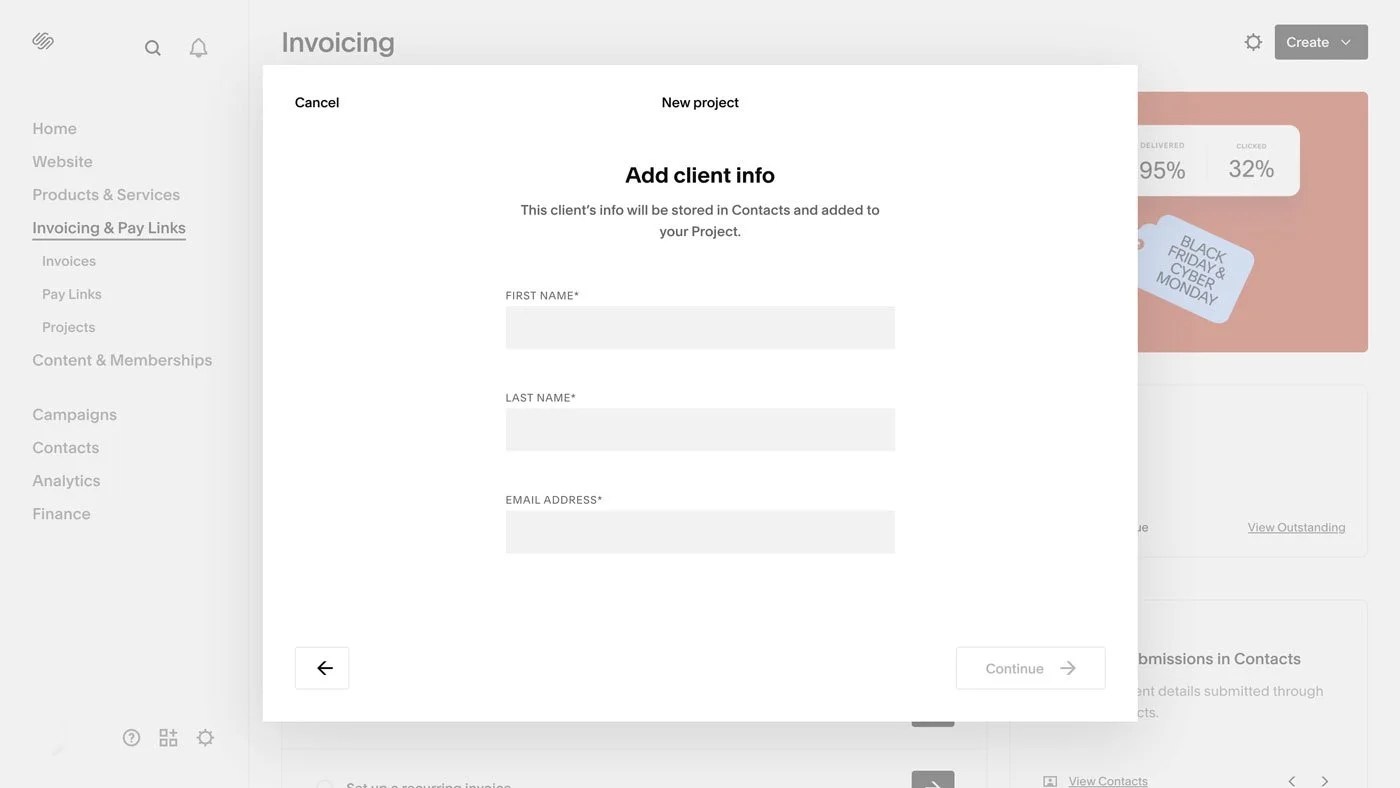
Click Create (top right) > Project to create your first project. If you have a client, you can add their details. If you’re just exploring, you can add yourself as a test client. You’ll then be taken to the project area for that client.
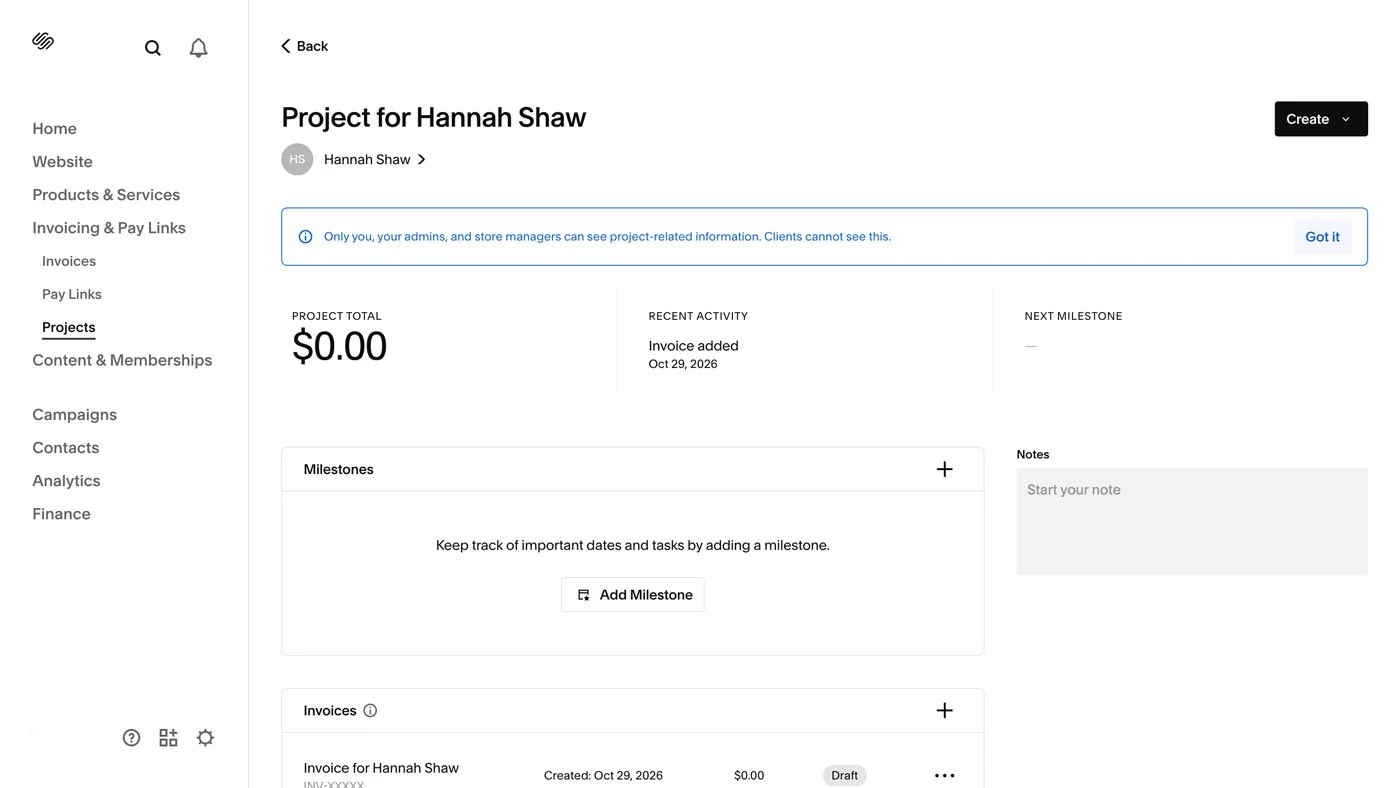
Take some time to familiarize yourself with the layout of the project area. At the top, you’ll see:
Project total: The amount earned.
Recent activity: The latest actions taken.
Next milestone: The next major task on your list.
Below that are areas for:
Notes: Space for you to leave project notes and thoughts.
Milestones: A place to keep track of important tasks and dates.
Invoices: A list of project invoices and their status.
Documents: This is where you can create proposals, estimates, and contracts.
Form submissions: Keep any messages the client has submitted through your forms, such as an enquiry form or discovery form.
IV. Create a Proposal
In the Project area, go to Documents > + icon > Proposal. Give the proposal a title and add the project details. You can design and create it inside the Squarespace editor.

V. Create an Estimate
In the Project area, go to Documents > + icon > Estimate. Customize your estimate, including the price options and project timeline, then press the Send button when the estimate is ready to share.
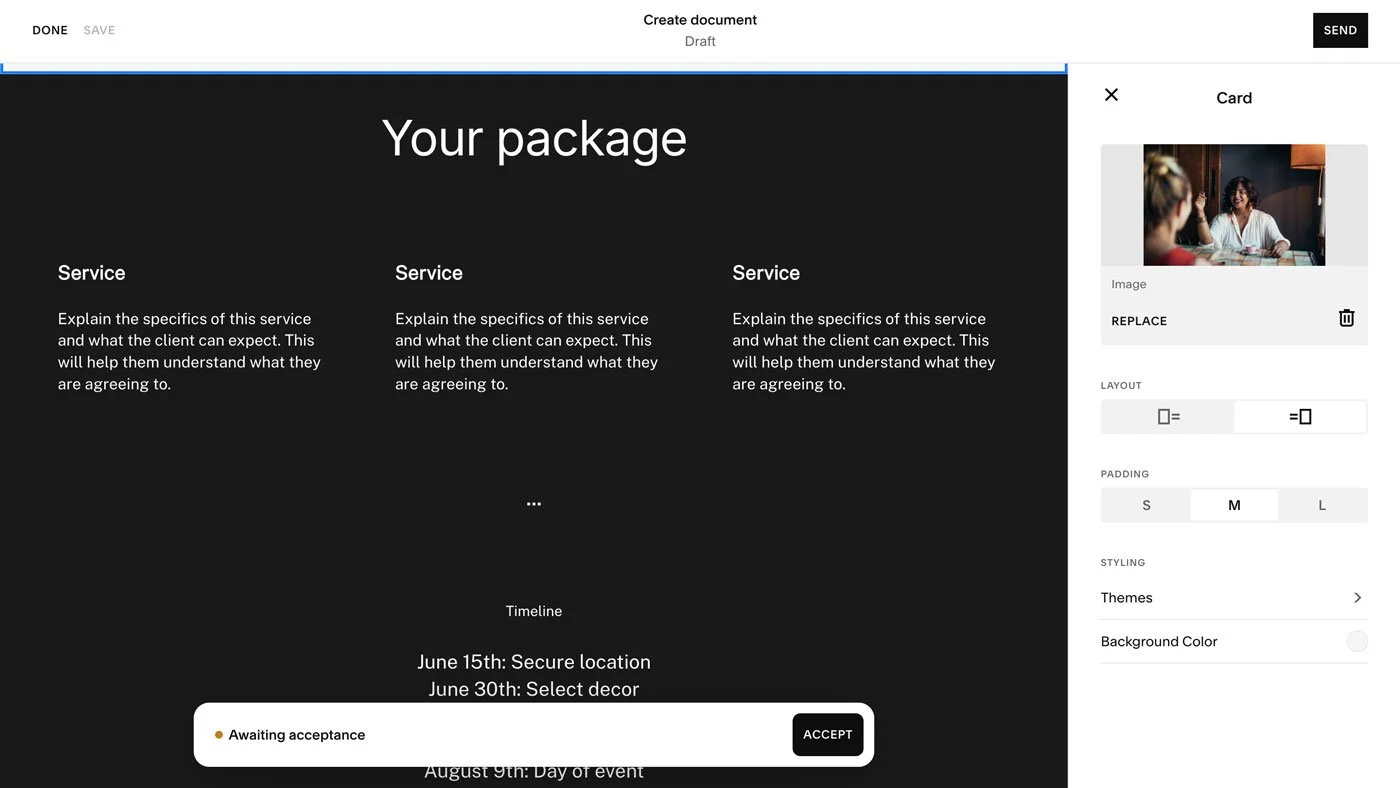
VI. Create a Contract
In the Project area, go to Documents > + icon > Contract. Customize your contract with your client details, project description, and terms. Press the Send button when the contract is ready to share.
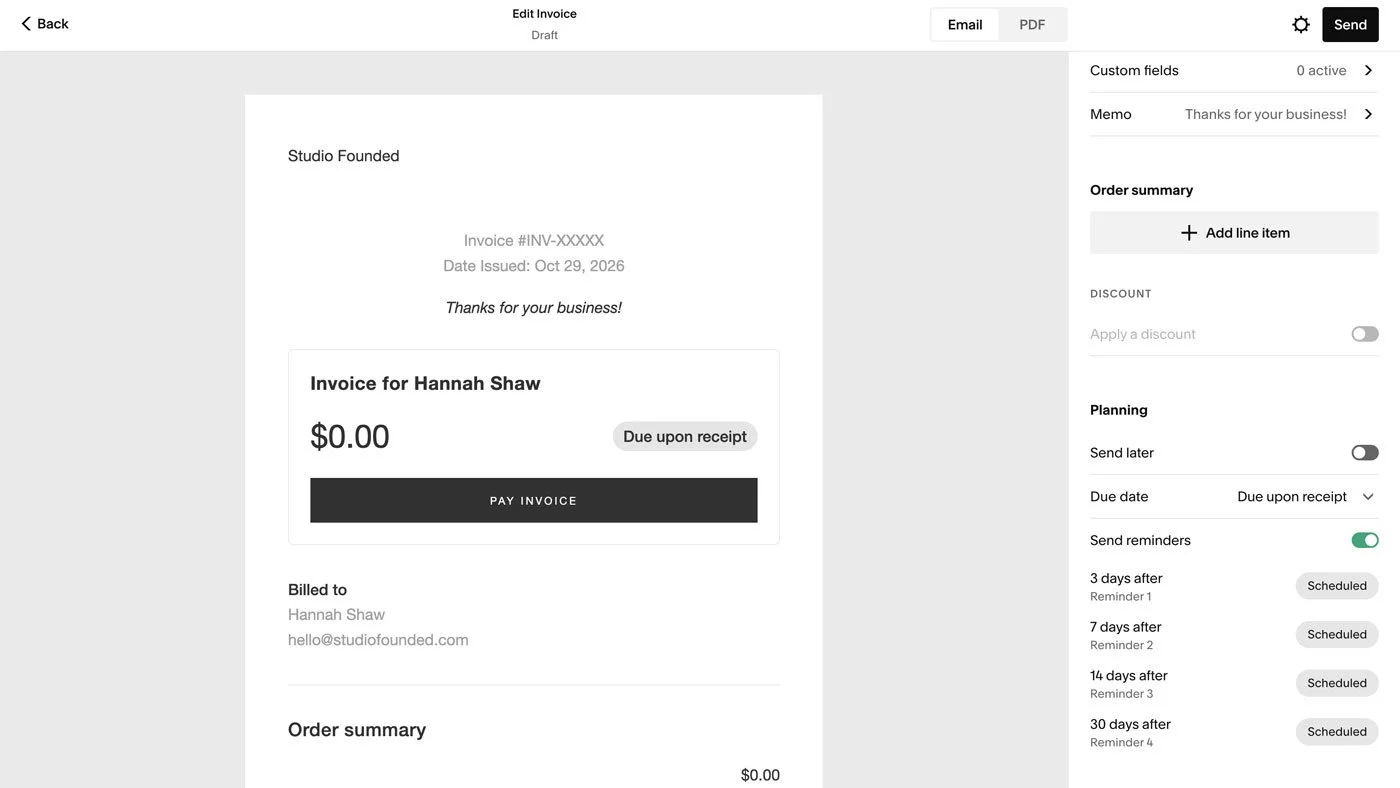
VII. Create and send a Squarespace Invoice
In the Project area, go to Invoices and press the + icon to create a new invoice. Add line items, discounts, and customize the memo, send date, and due date, and choose if you want to turn on payment reminders.
Before you send it, remember to connect your payment processor via your site > Settings > Selling > payments and choose your processors. Please note that Squarespace Payments replaces Stripe, but you can still use PayPal with it, Once Squarespace Payments are turned on you can’t go back, so take your time to double-check that Squarespace Payments fits your needs before committing.
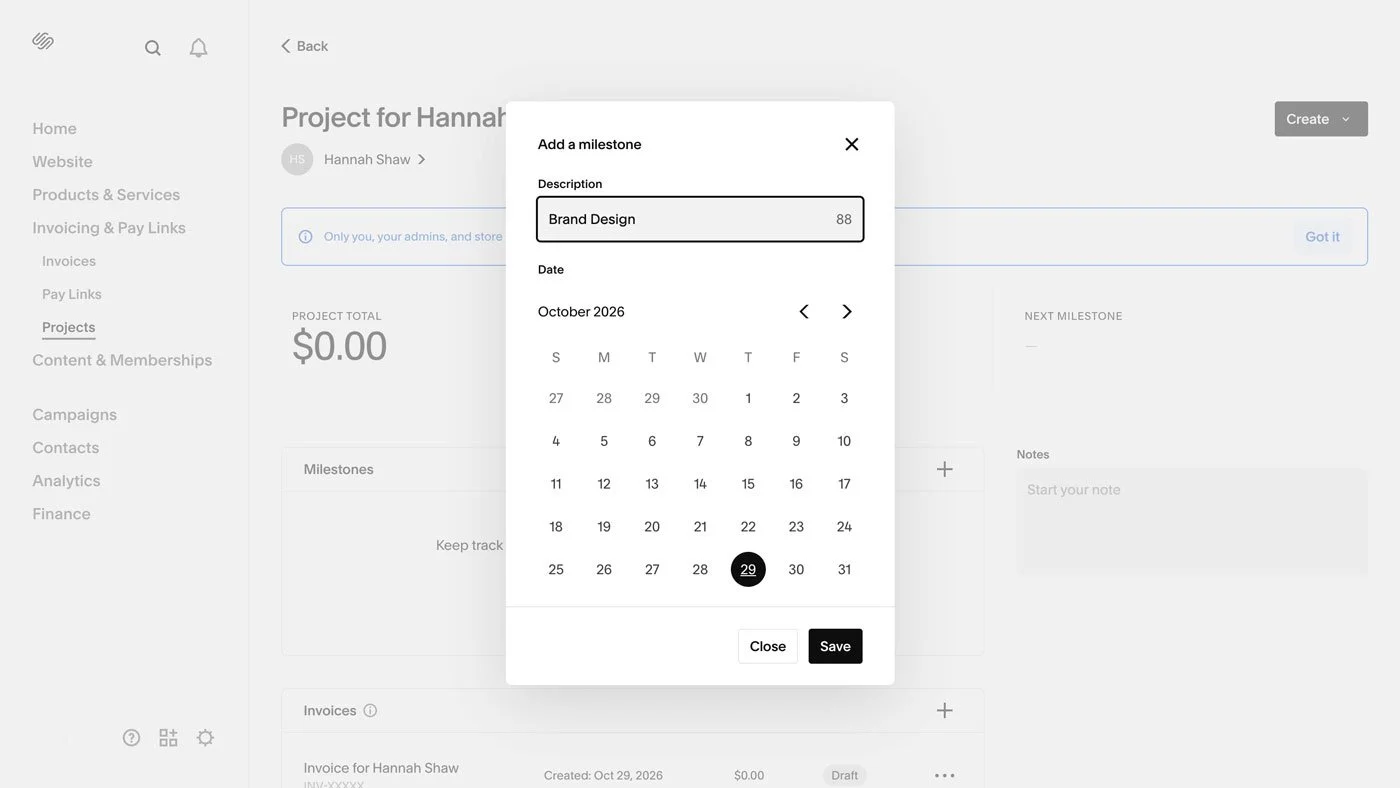
VIII. Create Project Milestones
In the Project area, go to Milestones and press the + icon to create a new milestone. Add the task description and date, then click Save.
IX. Collect Leads
To collect leads from new clients, you can use the Squarespace Form Block on your contact or services pages to build an intake form. Once someone contacts you, you can then create a project for them, selecting Add Existing client. At this stage, you can also attach their form submission, so you can keep their intake form as a reference throughout the project.
FAQs
Is Squarespace Invoicing free to use?
It’s included in your Squarespace subscription, and currently available in every plan. Squarespace doesn’t charge a fee on your invoices. However, your payment processor (Stripe or PayPal) will charge their own fees. You can enable Squarespace Payments, Squarespace’s built-in payment processor, but this also charges a fee depending on your plan.
What makes Invoicing different from a separate CRM tool?
The main reason to use Invoicing is integration with your Squarespace website. It means that all your processes can be housed within the Squarespace ecosystem, using your site to manage client projects, product sales, newsletters, scheduling, and content. It doesn’t offer as many advanced features as tools like HoneyBook or Dubsado, but if you’ve ever tried those tools and found them too complex for your needs, Invoicing is a great option to try.
How can I collect a deposit?
There isn’t a dedicated option for deposits, but you can create an invoice for the deposit, and a second invoice for the remaining payment.
How can I create a recurring invoice?
You can open the Invoices area, select Create (top right) and choose Recurring Invoice.