Your announcement bar sits at the top of your Squarespace* website, and it can be used strategically to share important news, messages, and offers that you want to direct visitors to.
In this guide, we’ll walk you through turning on your Squarespace announcement bar, styling it, and writing your announcement bar messaging.
Affiliate disclosure: Some of the links in this article are affiliate links, marked with an asterisk (*). Studio Founded may receive a commission from qualifying purchases made through these links, at no additional cost to you. You can read our full affiliate disclosure here.

I. Open Marketing Tools
Start by going to your Squarespace dashboard and using the left-hand panel to navigate to Pages > Marketing Tools > Announcement Bar, or use the search tool to search for “Announcement Bar”.
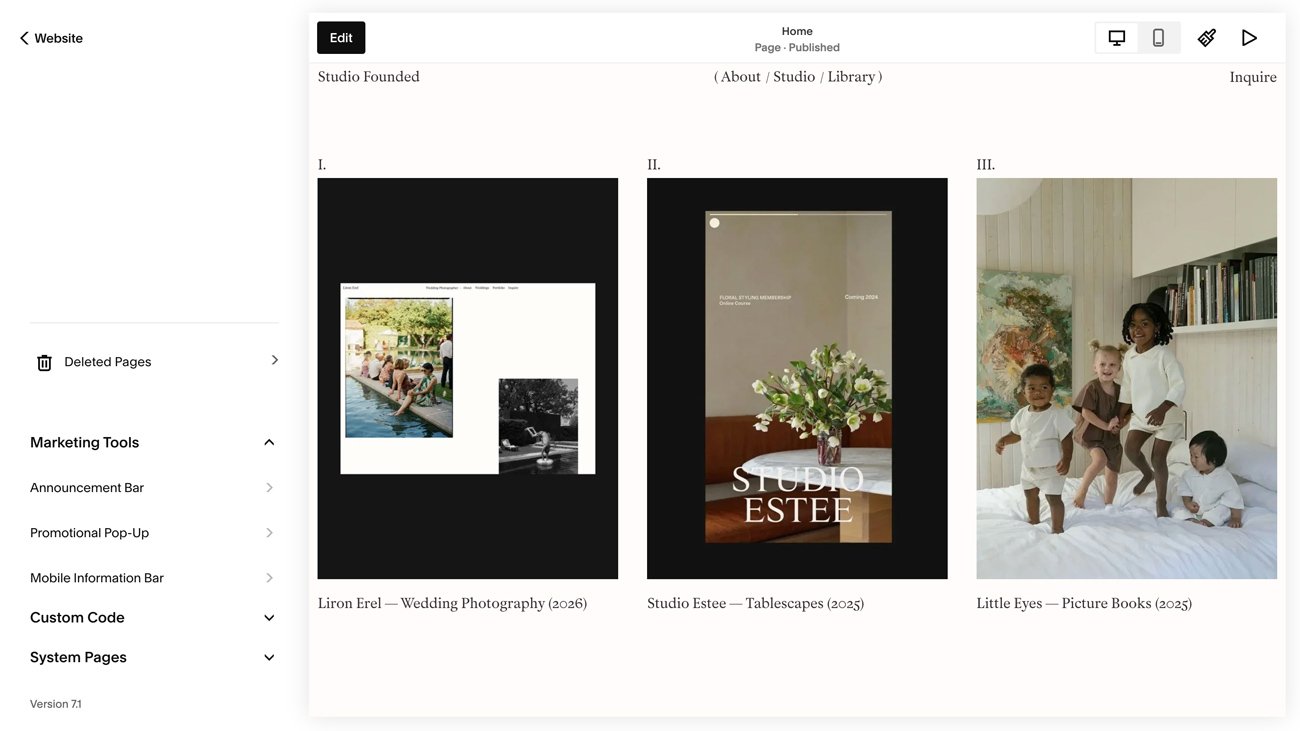
II. Turn on the Squarespace Announcement Bar
Toggle on the Announcement Bar option.
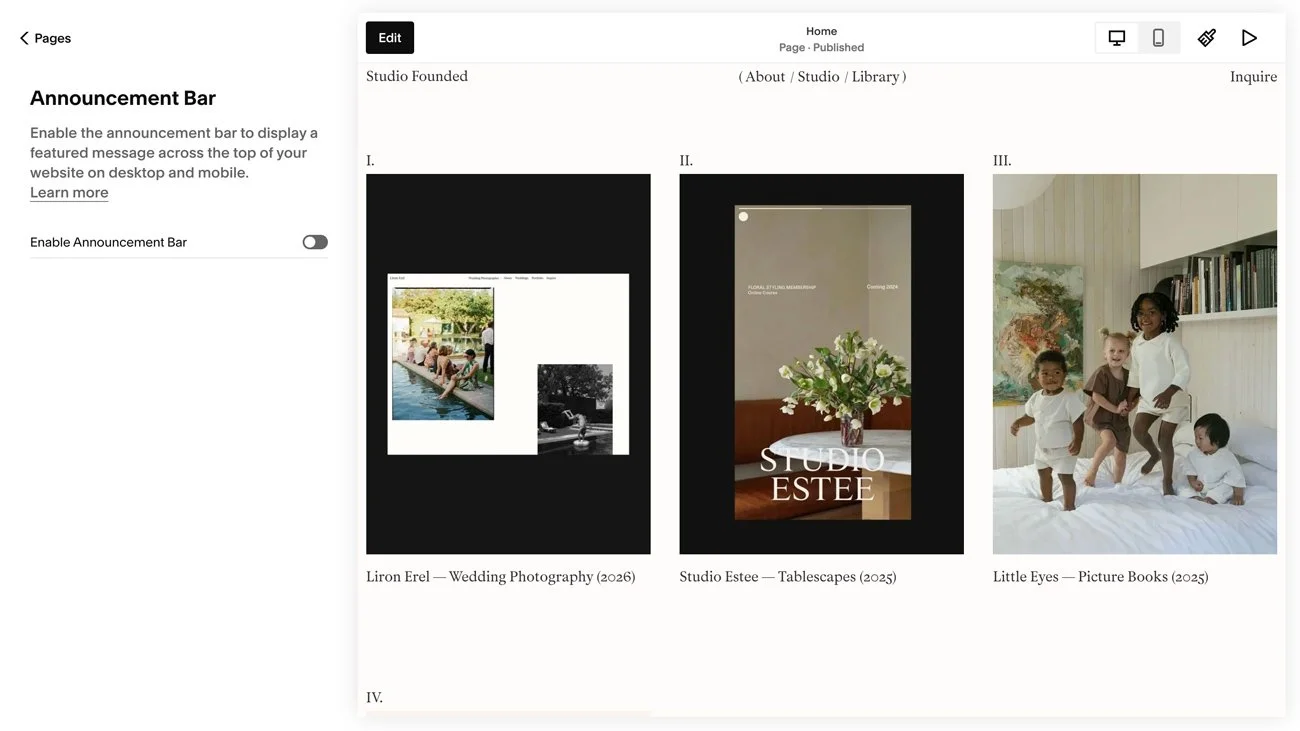
III. Add Your Announcement Message
Write your announcement bar message (we’ll share more on what you should write below).
You can also add a clickthrough URL to make the announcement bar clickable if you’d like to link to a specific page or content.
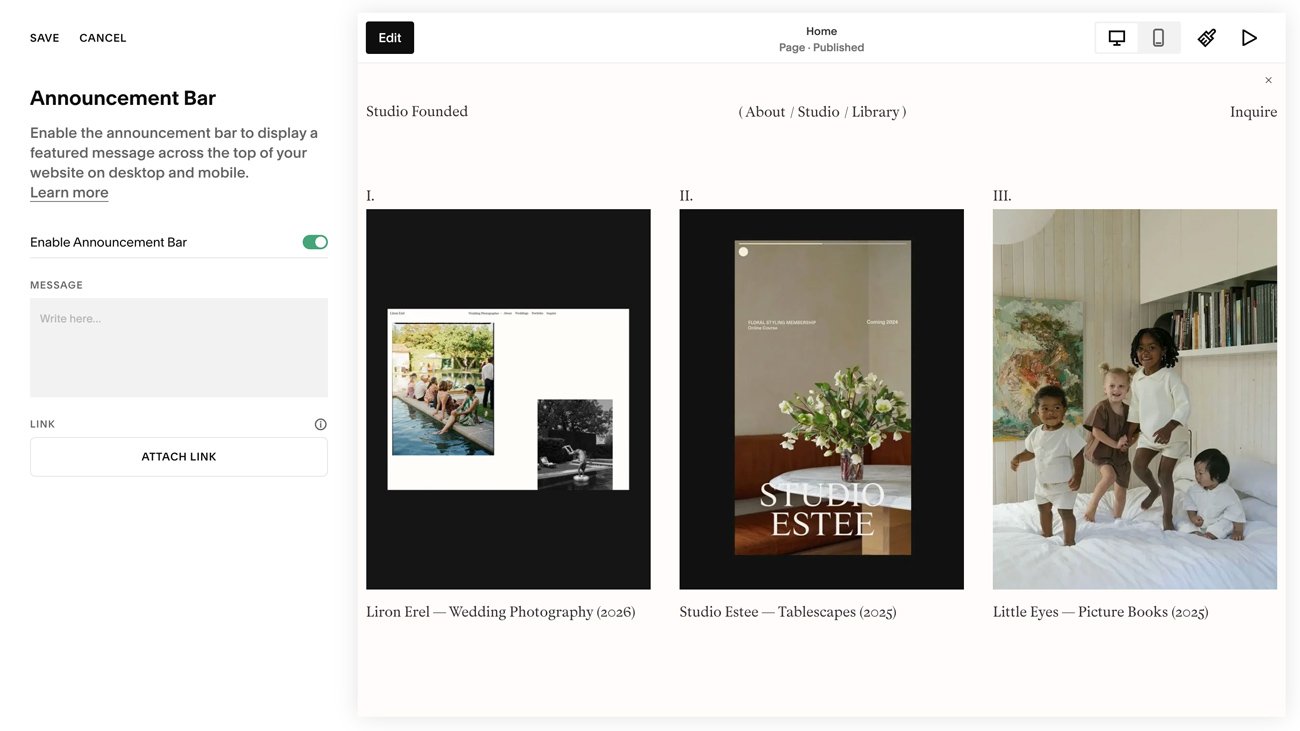
IV. Save Your Changes
Press the Save button, and your announcement bar will be live.
How to Style the Squarespace Announcement Bar
There are a few design options you can apply to your announcement bar:
Font
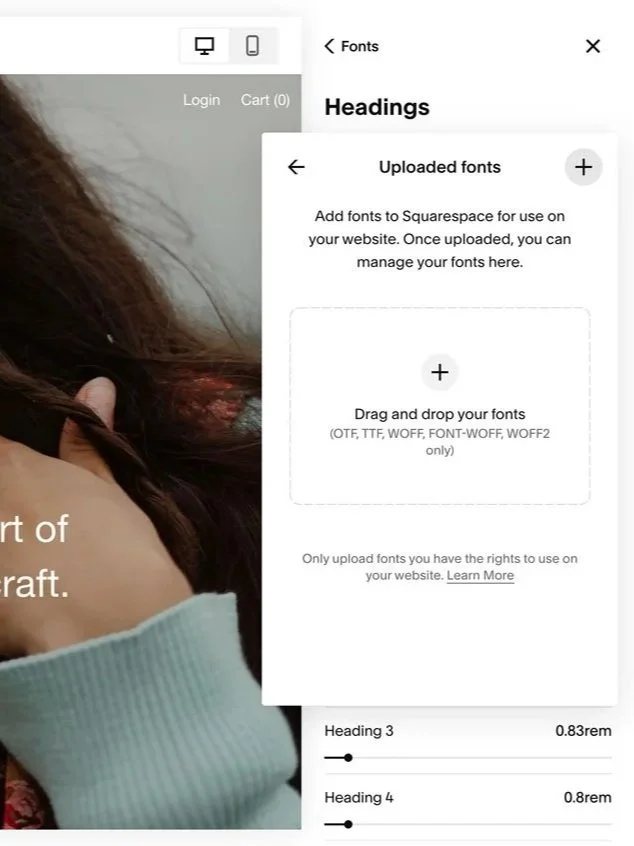
Go to Design > Fonts and choose a font that fits your brand.
Colors
Under Design > Colors you can choose a color from your brand palette or an accent color if you’d like the announcement bar to stand out.
Border
You can add a border to the bottom of your announcement bar with custom CSS. To do this, open the CSS Panel, paste the following code, and replace the hex value with your chosen color:
/* Announcement Bar Border */

.sqs-announcement-bar {
border-bottom: 1px solid #000000;
}
How to Write Your Announcement Bar Message
Here’s what to consider when writing your announcement bar message:
Your Goal
Start by thinking about what you want your announcement bar to achieve. Do you have a signature offer you’d like to promote, 1:1 spaces available you’d like to let people know about, or are you sharing an update? The end goal should guide the content that goes into the announcement bar.
Length
Announcement bars are small and can look heavy or crammed if you add too much content. Keep the message short and easy to read at a glance, so it’s clear and not too distracting from your main content.
Urgency
Don’t overuse urgency, as false urgency can push people away, but some urgency can be helpful for offers that are genuinely limited or time-sensitive by encouraging visitors to take action.
Value
Focus on the value that you’re offering and what your visitor can gain from clicking on your announcement bar and exploring your offer, i.e. a free strategy call to help them book more clients.
Call-to-Action
Tell your visitors what the next step is, like “Shop Now,’ or “Learn More,” and include a link that takes them to further information.
Some examples are:
Shop our Latest Collection of Handmade Artisanal Jewellery (Link to the latest collection in your Shop).
Book a 1:1 Strategy Session - 5 Spaces available for September (Link to your booking form or scheduler).
Free: Download Our Brand Strategy Guide (Link to your newsletter sign up form).
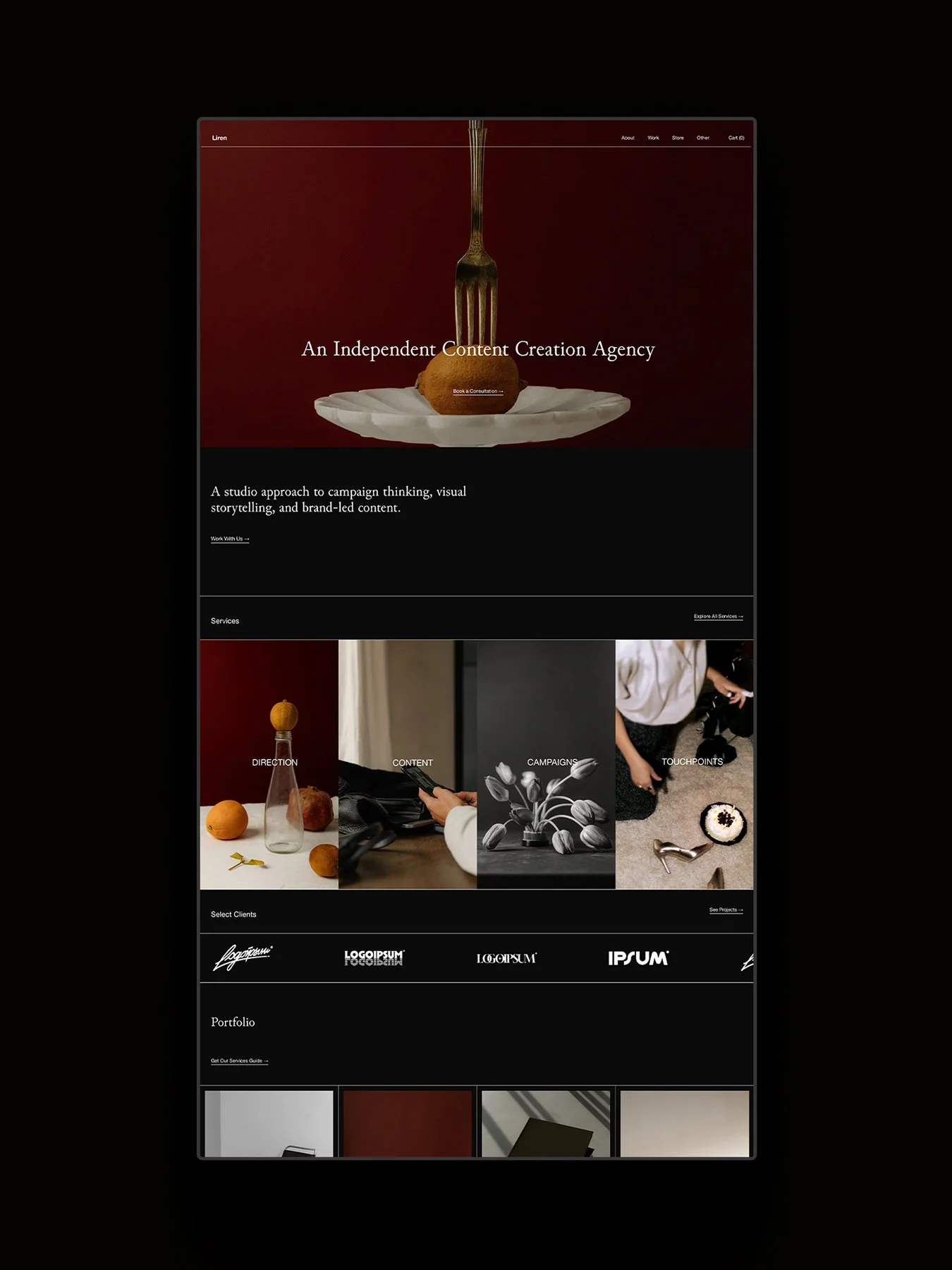
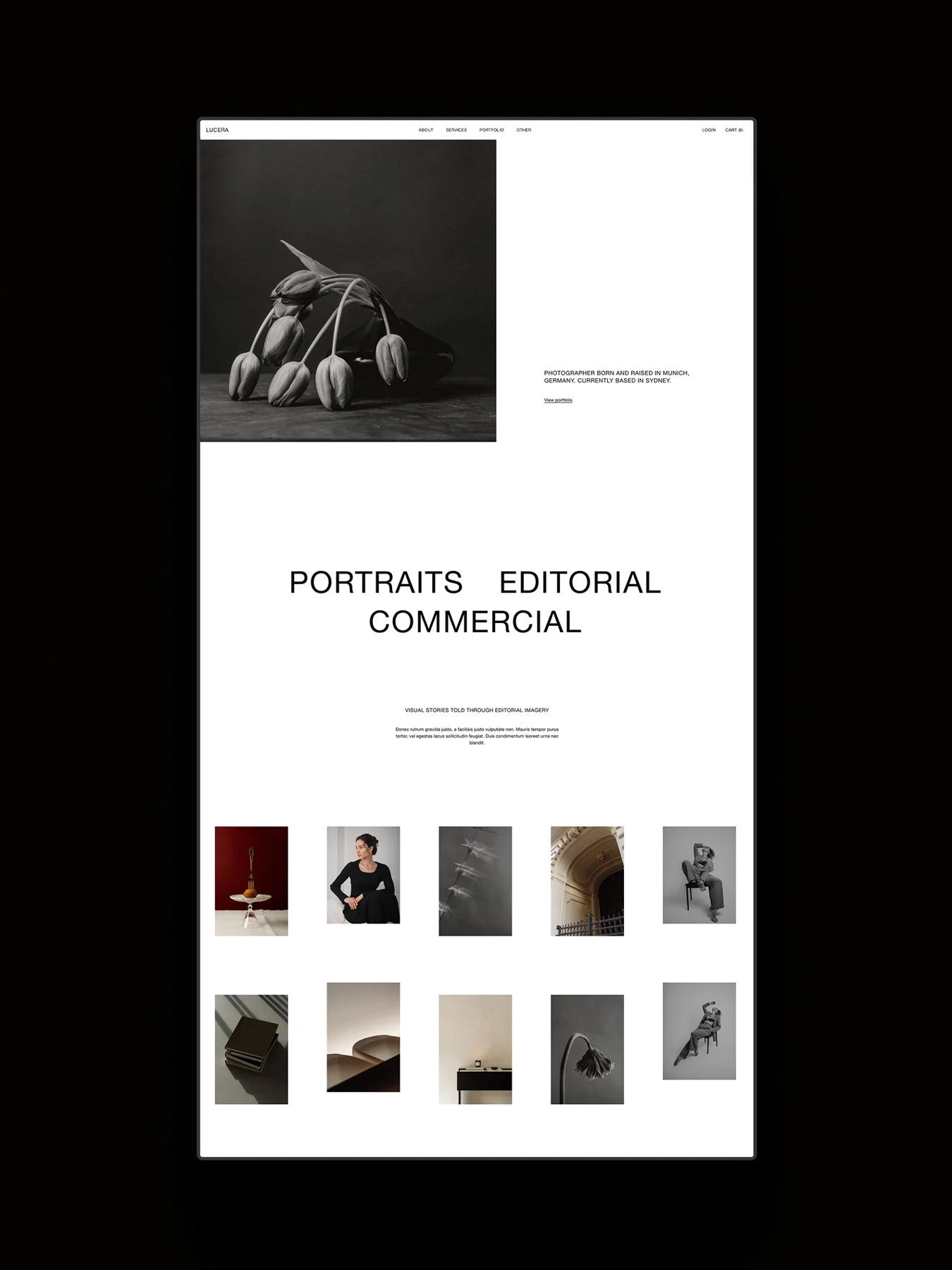
Shop Art-Directed Squarespace Templates
If you want to get started with Squarespace but aren’t confident with design, explore our collection of art-directed Squarespace templates. Each comes with a complete collection of 15+ pages, an extended 12-month Squarespace trial, and a 25% discount on your first year of Squarespace with an annual plan.